
1. Module summary
Decision (29 Sep 2026): email only. Accounts are verified with a 6-digit code sent to the guest's email. Login and password reset also use email only. No phone number is collected at registration, used for login, or verified by SMS/WhatsApp. In Edit Profile the phone is an optional contact field. Figma frames were updated to match (resolves G3).
Lets a tourist create a Dahab account (email/password, Google or Apple), verify it with a 6-digit code sent to their email, log in with email and password, recover a forgotten password, and maintain a profile. Every screen exists in English (LTR) and must work in Arabic (RTL); the Tablet error states in Figma are the Arabic reference specimens.
Happy path: Register → Verification OTP → (logged in) → Discovery Home. Returning user: Login → Discovery Home (or back to the page that required login). Recovery: Login → Forgot password → 6-digit code emailed → enter code → Set new password (§4.6) → signed in.
2. Business requirements covered (SRS)
| ID | Requirement | Priority | MVP | Where in the design |
|---|---|---|---|---|
| FR-1.1 | Register via email/password, Google, or Apple | High | MVP ✓ | Register |
| FR-1.2 | Log in, log out, reset a forgotten password | High | MVP ✓ | Login, Forgot Password, Edit Profile (Log out on native only) |
| FR-1.3 | Edit profile: name, photo, nationality, preferred language, phone (optional contact, not verified) | Medium | MVP ✓ | Edit Profile |
| FR-1.4 | Delete account / request data deletion | Medium | Later | Not designed (correct for MVP) |
| FR-1.5 | Email/SMS verification on registration — MVP uses email only | High | MVP ✓ | Verification OTP |
| FR-20.2 | Switch language at any time from settings | High | MVP ✓ | Language toggle in every header + Edit Profile language toggle |
| NFR-3 | HTTPS/TLS, hashed passwords (bcrypt/argon2) | — | MVP ✓ | Backend; "256-bit encrypted" badges on screens |
| NFR-6 | First-time guest can book without > 5 setup steps | — | MVP ✓ | Register + OTP = 2 steps |
| NFR-9 | Personal data encrypted at rest; export/deletion supported | — | MVP ✓ | Edit Profile collects passport/ID data → in scope of NFR-9 |
| NFR-11 | WCAG 2.1 AA where practical | — | MVP ✓ | All forms (labels, error text, contrast) |
3. Screen inventory
| # | Screen | States in Figma | Breakpoints |
|---|---|---|---|
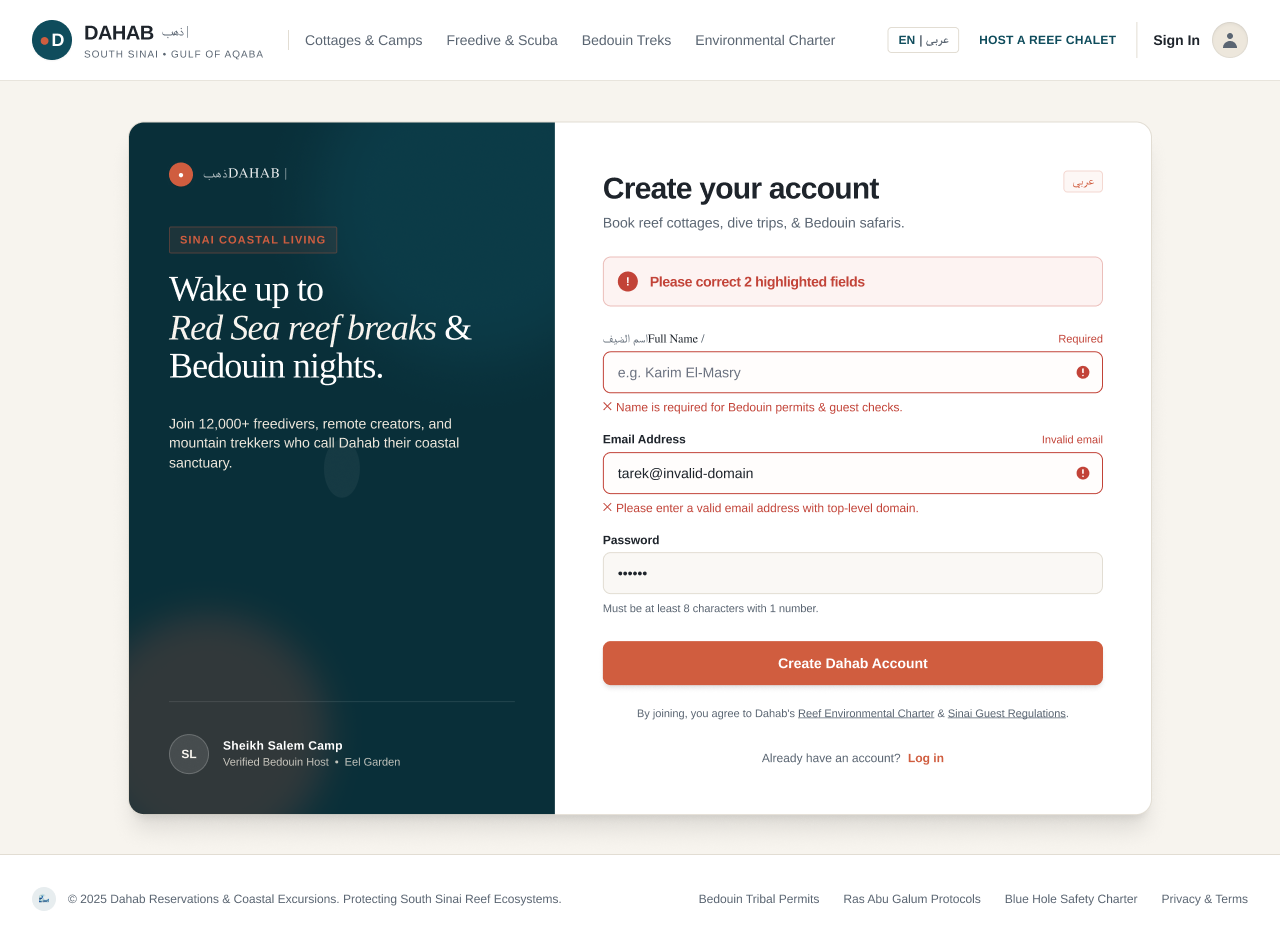
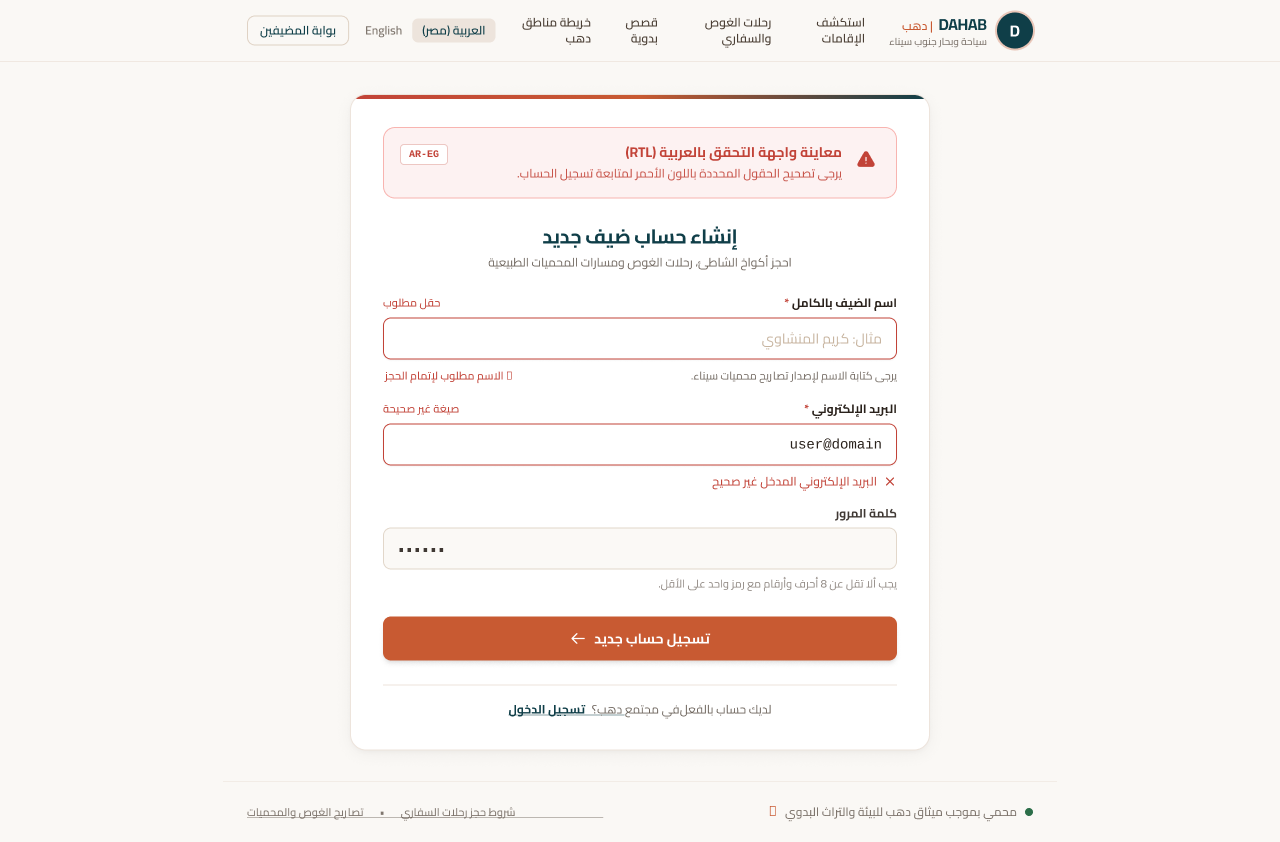
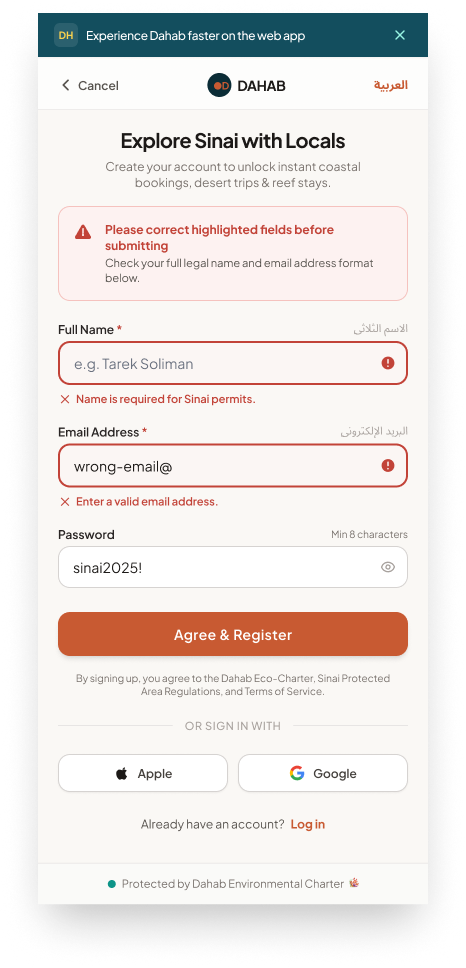
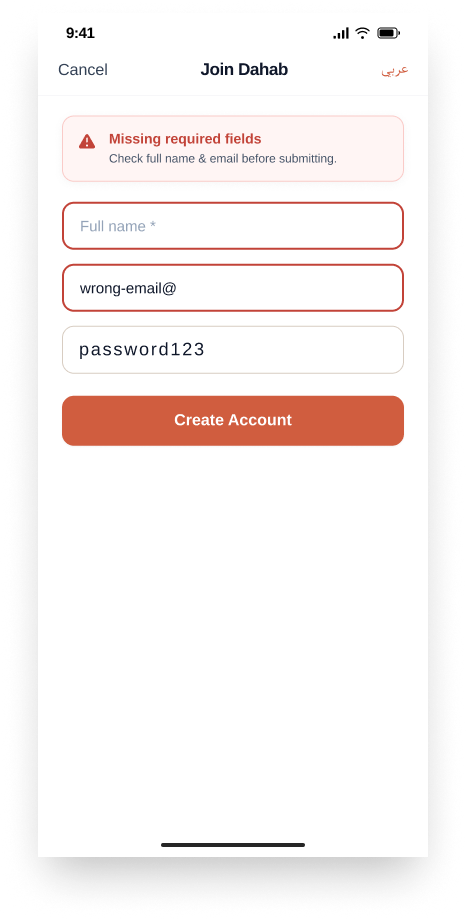
| 4.1 | Register | Default · Validation error | All 4 (Tablet error state is the Arabic RTL specimen) |
| 4.2 | Login | Default · Wrong-credentials error | All 4 (Tablet error state is Arabic RTL) |
| 4.3 | Forgot Password | Default · Code sent | All 4 |
| 4.4 | Verification OTP | 6-digit entry | All 4 |
| 4.5 | Edit Profile | Default | All 4 |
| 4.6 | Set New Password | Default · Validation error · Session expired · Success | All 4 |
Shared shell (all web screens): top header — logo DAHAB • دهب, links Discover Stays · Diving & Safari Trips · Bedouin Stories · Dahab Zones Map, language toggle EN | عربي, HOST PORTAL link, profile icon; footer with destination links, legal links and the 24/7 emergency block (Dahab Hyperbaric Chamber +20 69 364 0530, VHF Ch 16). Mobile Web adds a PWA "Install" banner at the top. Native App: iOS-style nav bar (Cancel · title · عربي); screens reached after login show the bottom tab bar Explore · Saved · Bookings · Profile.
4. Screen specifications
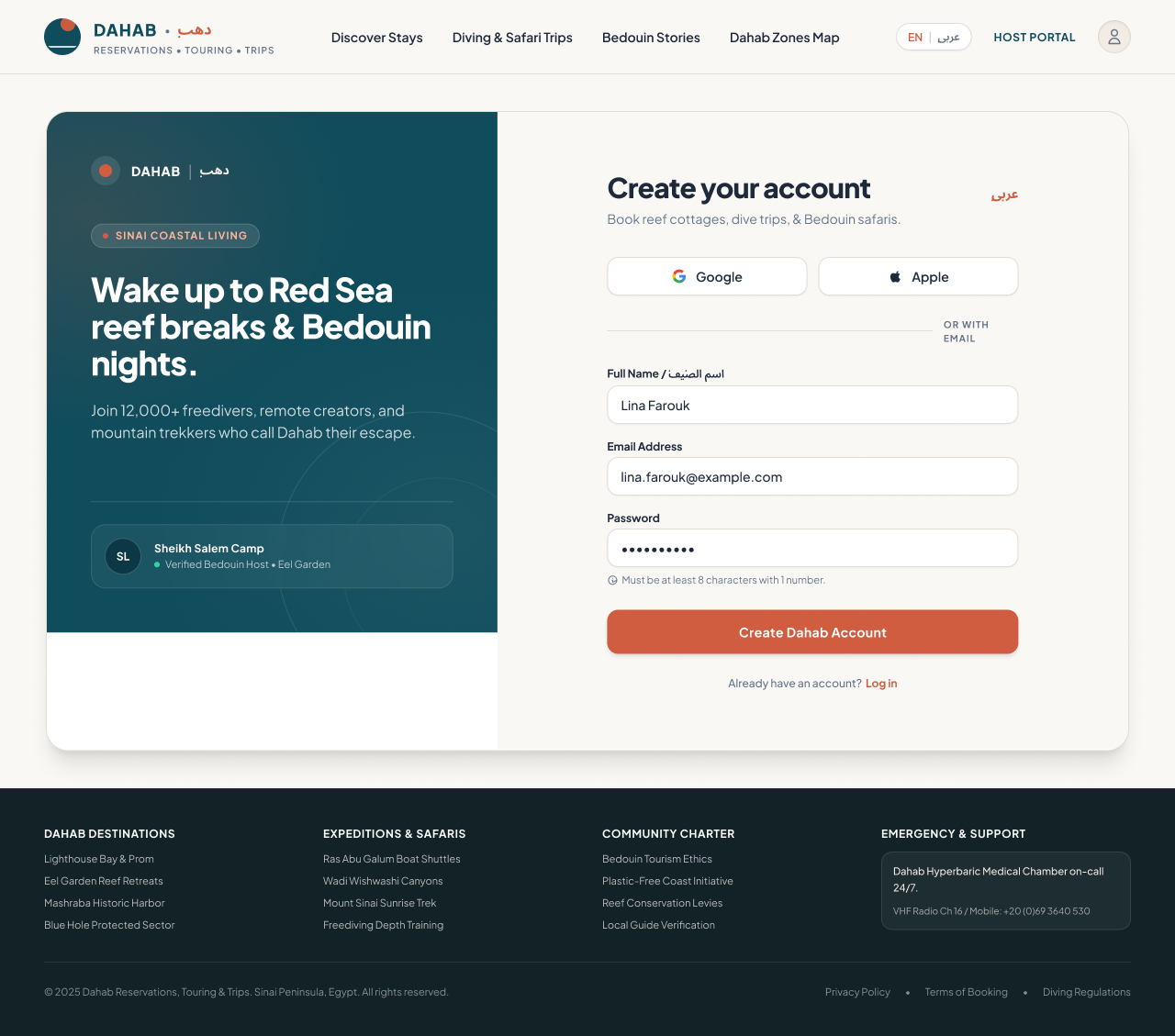
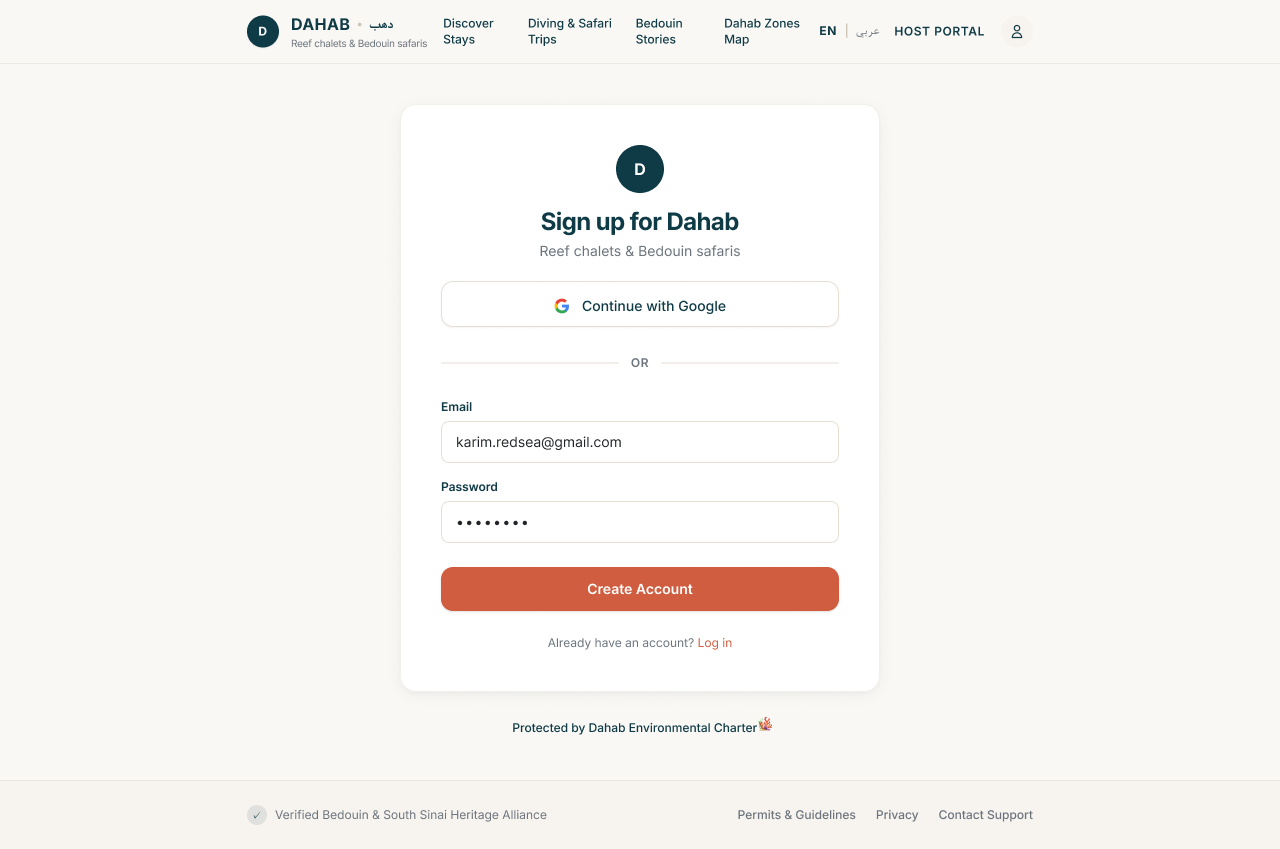
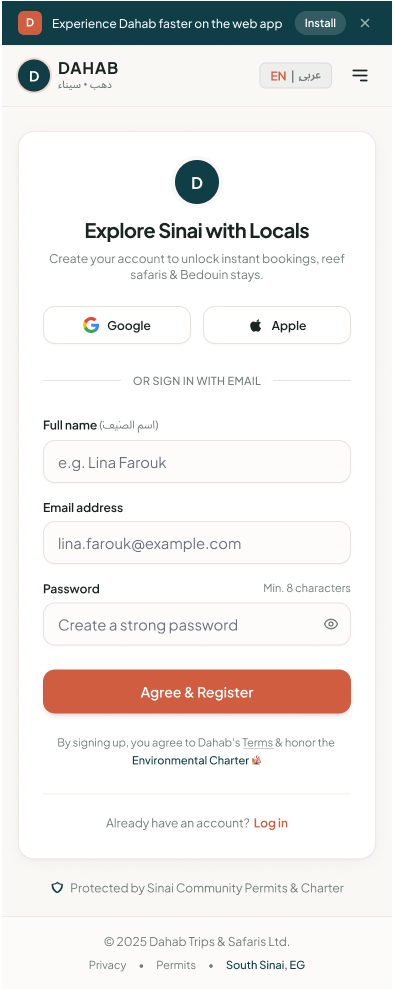
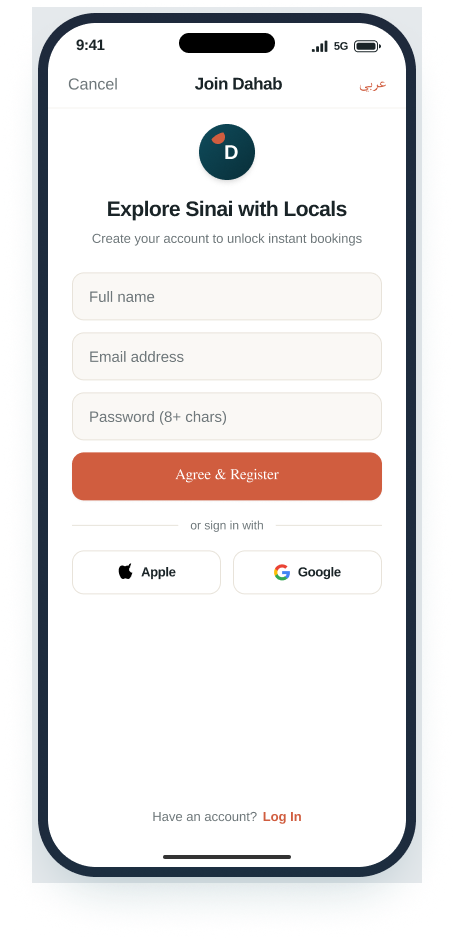
4.1 Register
Purpose: create a guest account. Entry points: "Create account / Register" links on Login; header profile icon when logged out; any action that requires an account (Reserve, Save to favorites). Exit: Verification OTP (success) · Login (via "Log in" link) · previous screen (Cancel on native).
 Open in Figma · 16:635
 Open in Figma · 16:414
 Open in Figma · 16:141
 Open in Figma · 16:5
 Open in Figma · 16:823
 Open in Figma · 16:515
 Open in Figma · 16:278
 Open in Figma · 16:87
UI elements
| Element | Type | Behaviour / rule |
|---|---|---|
| Continue with Google | Button (SSO) | Starts Google OAuth. On success creates/links account and skips the password fields. |
| Continue with Apple | Button (SSO) | Starts Sign in with Apple. Required on iOS whenever another social login is offered. Missing on Tablet design. |
| Full Name / اسم الضيف | Text input, required | Error copy: "Name is required for Bedouin permits & guest checks." Missing on Tablet design. |
| Email Address | Email input, required | Must be a valid address with a top-level domain. Error: "Please enter a valid email address with top-level domain." |
| Password | Password input, required, show/hide toggle (mobile web) | Helper text: "Must be at least 8 characters with 1 number." (see §7 — rule differs between breakpoints) |
| Create Dahab Account / Agree & Register | Primary button | Validates all fields; on success sends the verification code and opens Verification OTP. |
| Consent text | Static text with links | "By signing up, you agree to Dahab's Terms & honor the Environmental Charter". Tapping "Agree & Register" = acceptance. |
| Already have an account? Log in | Link | Opens Login. |
| عربي / EN toggle | Toggle | Switches UI language and direction instantly; form content is kept. |
| Cancel (native) | Nav button | Closes the flow without saving. |
| Install (mobile web) | Banner button | Offers "Add to home screen" (PWA). Dismissible. |
| Hero panel, testimonial, "Join 12,000+ …" (desktop) | Marketing content | Static; managed as content, no logic. |
Step-by-step — email registration (happy path)
| # | Guest does | System does |
|---|---|---|
| 1 | Opens Register | Shows empty form; SSO buttons on top (web) or below the form (native). |
| 2 | Types full name, email, password | Inline validation on blur (format, password rule). |
| 3 | Taps Create Dahab Account / Agree & Register | Validates all fields server-side; checks email not already registered. |
| 4 | — | Creates the account in unverified state, stores password hashed (bcrypt/argon2), records consent timestamp + terms version. |
| 5 | — | Emails a 6-digit verification code to the address entered and opens Verification OTP. |
| 6 | Enters the code (see 4.4) | Marks account verified, signs the guest in, returns them to the page they came from (or Discovery Home). |
Step-by-step — Google / Apple
| # | Guest does | System does |
|---|---|---|
| 1 | Taps Google or Apple | Opens the provider's consent sheet. |
| 2 | Approves | If the email already exists → links the provider to that account and signs in. If new → creates the account using the provider's name/email (Apple "Hide my email" relay addresses must be accepted). |
| 3 | Cancels at provider | Returns to Register with no error message. |
States & errors
- Validation error (Figma state): summary alert at the top — Desktop "Please correct 2 highlighted fields"; Native "Missing required fields — Check full name & email before submitting."; Mobile Web "Please correct highlighted fields before submitting". Each invalid field gets a coral-red border (#C24338) and an inline message under it. Focus moves to the first invalid field (accessibility).
- Email already registered — not designed. Proposed: inline under email "An account with this email already exists. Log in or reset your password."
- SSO failure / network error — not designed.
- Loading — button shows a spinner and is disabled to prevent double submission (not designed).
Breakpoint differences
- Desktop: split screen — marketing hero (left, teal) + form (right).
- Tablet: centred card; only Google SSO, only Email + Password fields (see §7).
- Mobile Web: SSO buttons first, then "OR SIGN IN WITH EMAIL", then fields; PWA install banner.
- Native: nav bar with Cancel/title/عربي; CTA reads "Agree & Register"; SSO below the CTA.
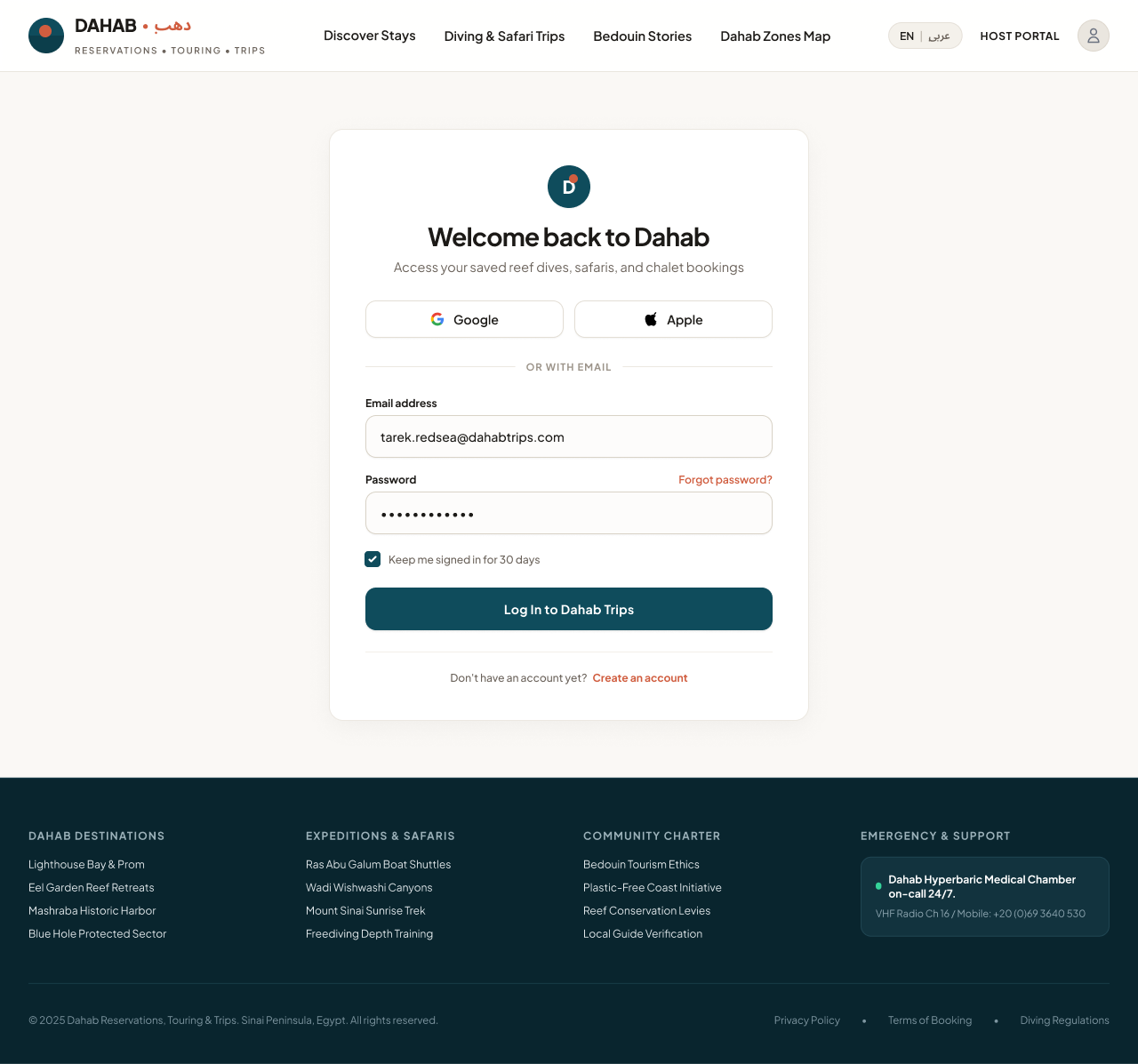
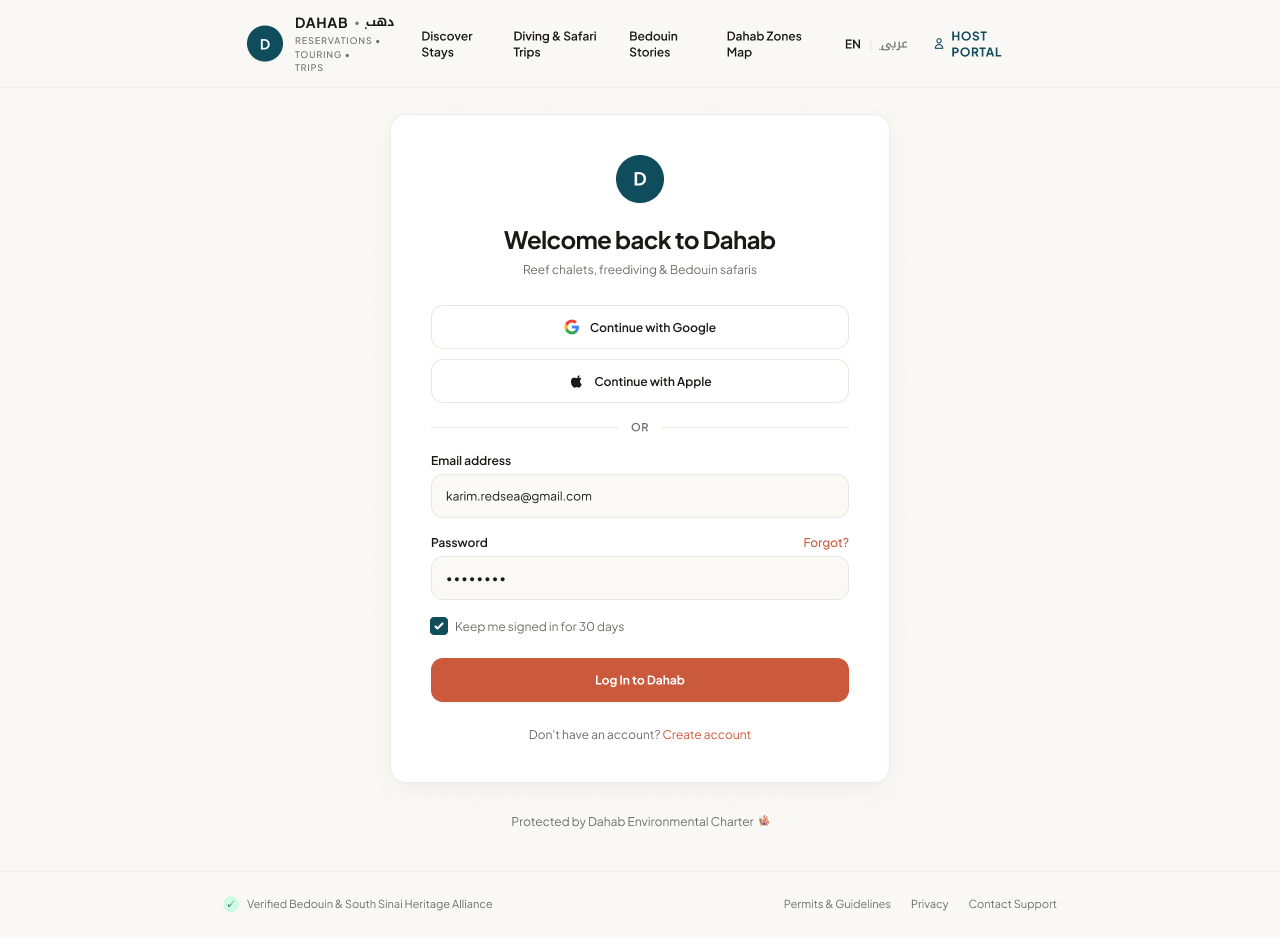
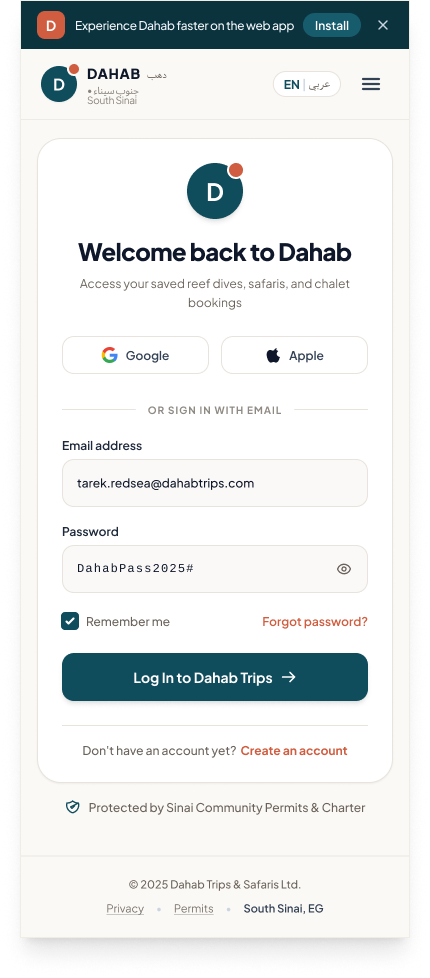
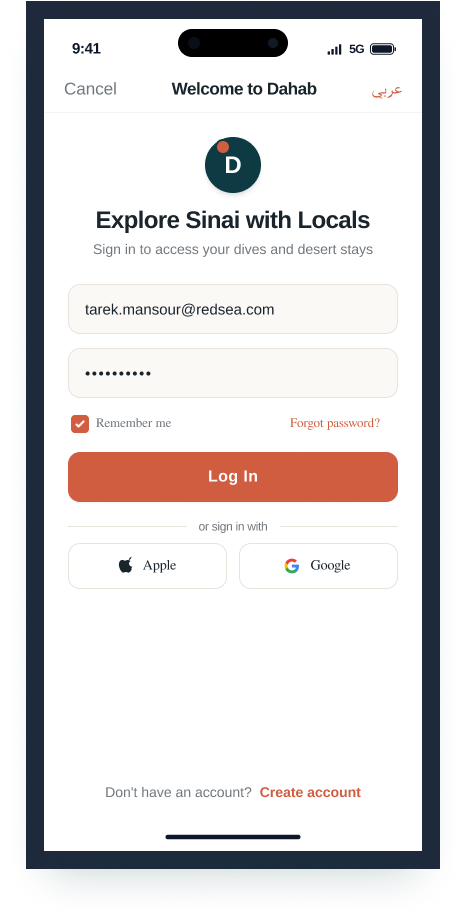
4.2 Login
Purpose: sign in a returning guest. Entry: header profile icon, "Log in" links, protected actions (Reserve, Saved, Bookings, Profile tabs). Exit: previous page / Discovery Home; Forgot Password; Register.
 Open in Figma · 16:1654
 Open in Figma · 16:1394
 Open in Figma · 16:1135
 Open in Figma · 16:987
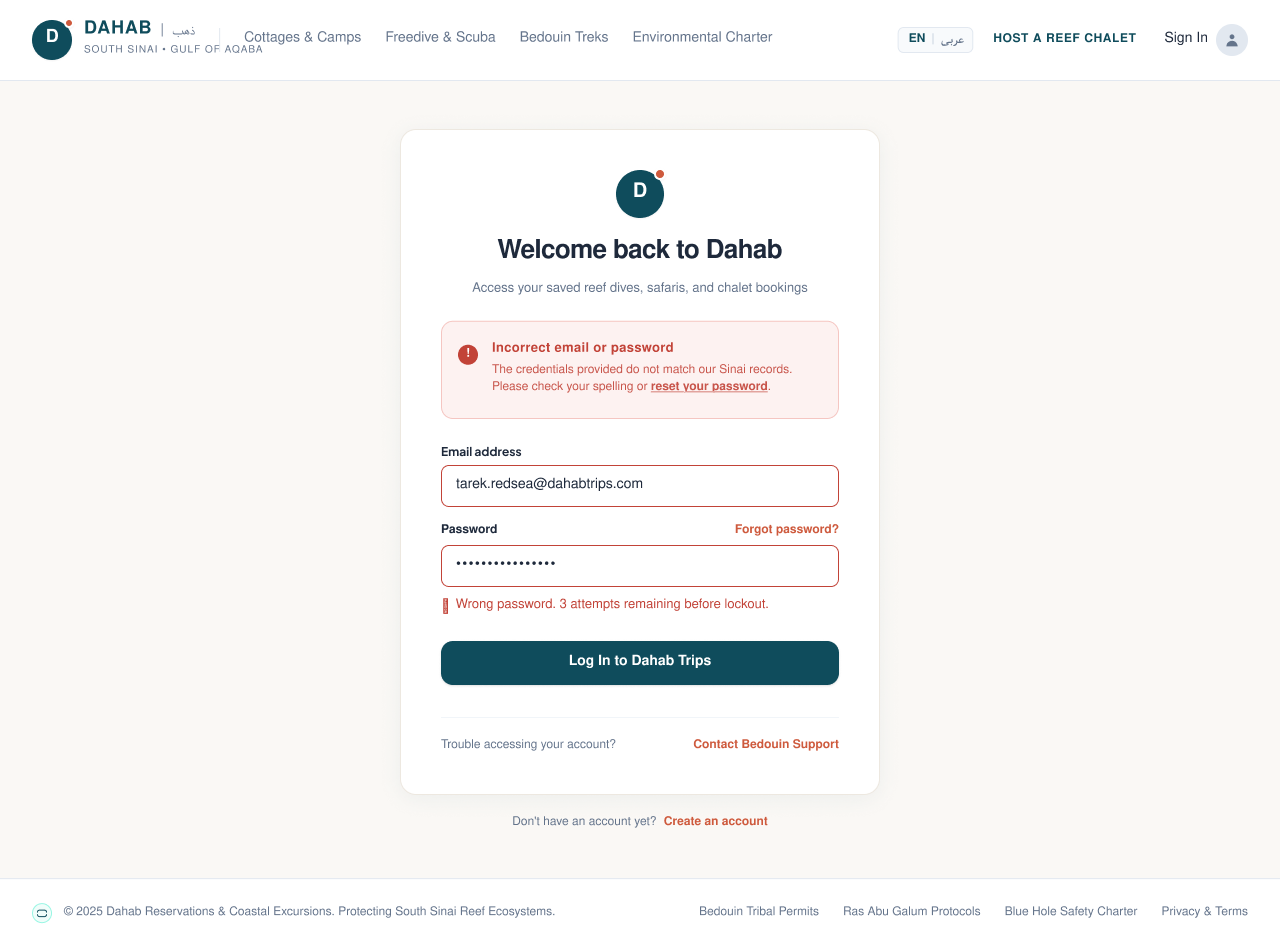 Open in Figma · 16:1815
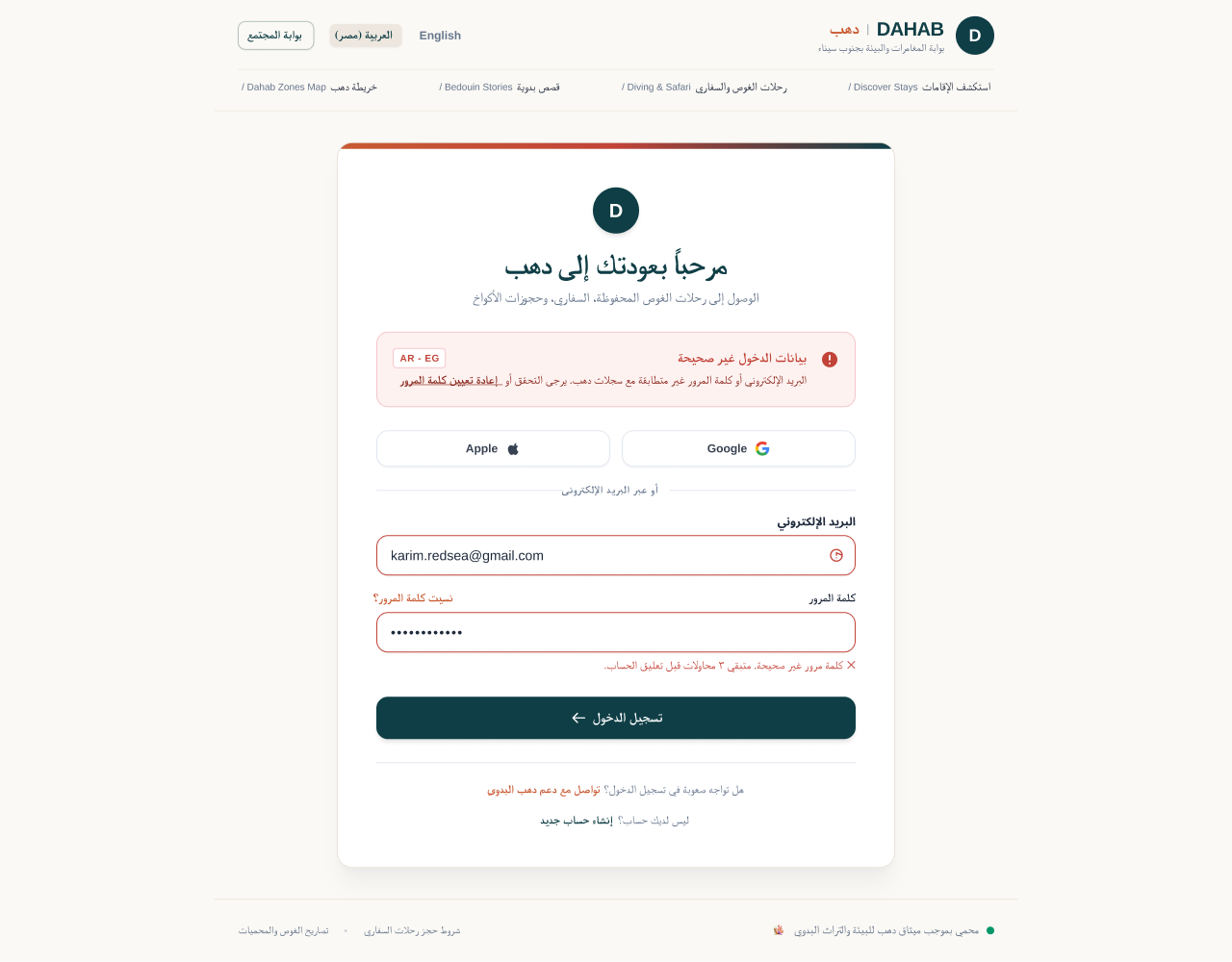 Open in Figma · 16:1509
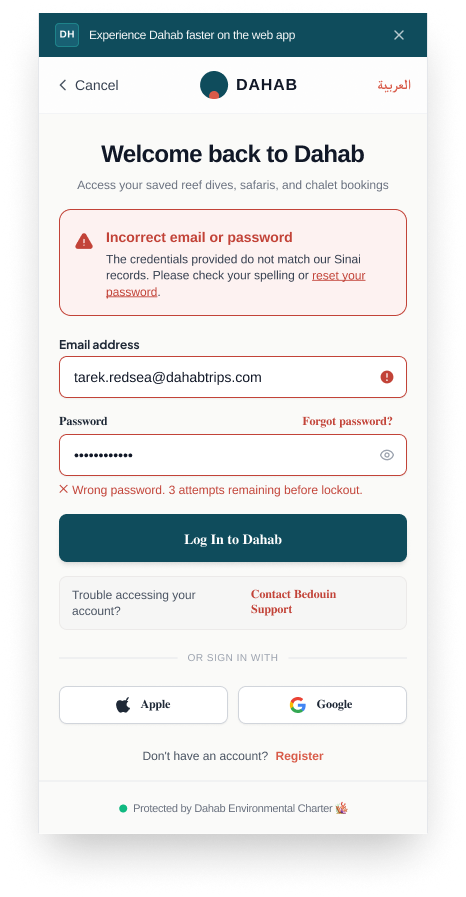 Open in Figma · 16:1275
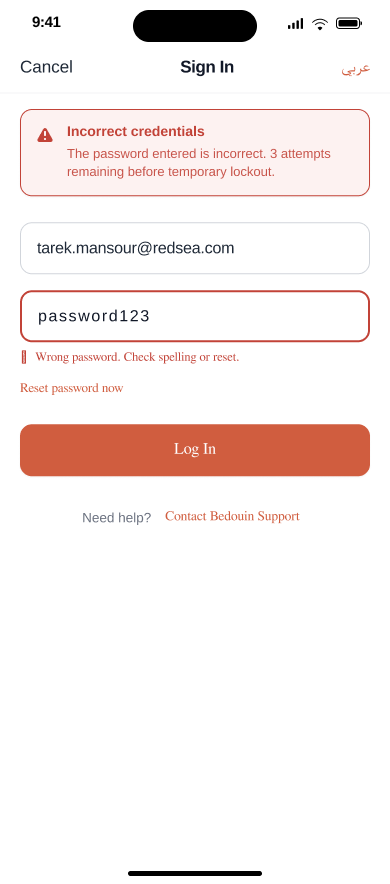 Open in Figma · 16:1074
UI elements
| Element | Type | Behaviour / rule |
|---|---|---|
| Google / Apple | SSO buttons | Same as Register; logs in or creates the account. |
| Email address | Email input | Email only (phone numbers are not accepted). Figma label updated from "Email or Phone Number". |
| Password | Password input | — |
| Forgot password? | Link | Opens Forgot Password, pre-filling the email typed so far. |
| Keep me signed in for 30 days / Remember me | Checkbox (web) / switch (native) | If on: session refresh token valid 30 days; if off: session ends when the browser/app session ends. |
| Log In to Dahab | Primary button | Authenticates. |
| Don't have an account? Create account | Link | Opens Register. |
| Contact Bedouin Support | Link (error state) | Opens support channel (WhatsApp/help page — target not defined). |
Step-by-step
| # | Guest does | System does |
|---|---|---|
| 1 | Enters email + password | — |
| 2 | Optionally ticks "Keep me signed in for 30 days" | — |
| 3 | Taps Log In | Verifies credentials. |
| 4a | — (correct) | Creates session, returns to the originating page (deep-link return), otherwise Discovery Home. If the account is not yet verified → opens Verification OTP. |
| 4b | — (wrong) | Shows the wrong-credentials state, keeps the email, clears the password, decrements remaining attempts. |
| 5 | After the last failed attempt | Temporarily locks the account; shows lockout message and "Reset password now". |
States & errors
- Wrong credentials (Figma state): alert "Incorrect email or password — The credentials provided do not match our Sinai records. Please check your spelling or reset your password." + inline "Wrong password. 3 attempts remaining before lockout." + "Trouble accessing your account? Contact Bedouin Support". Native: "Incorrect credentials — The password entered is incorrect. 3 attempts remaining before temporary lockout." + "Reset password now".
- Account locked — not designed (message, duration, unlock by reset).
- Unverified account — redirect to OTP (not designed as a separate message).
4.3 Forgot Password
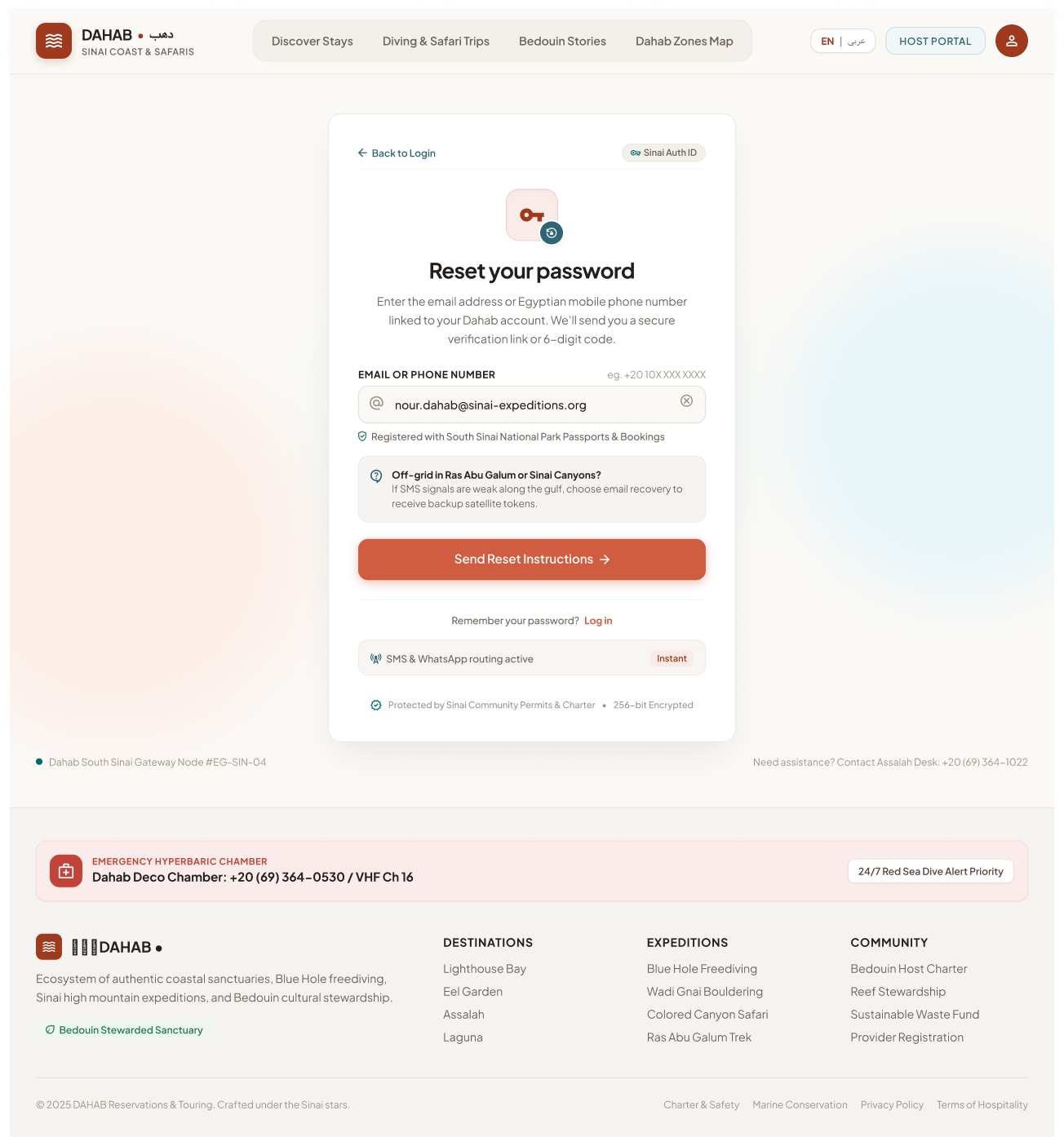
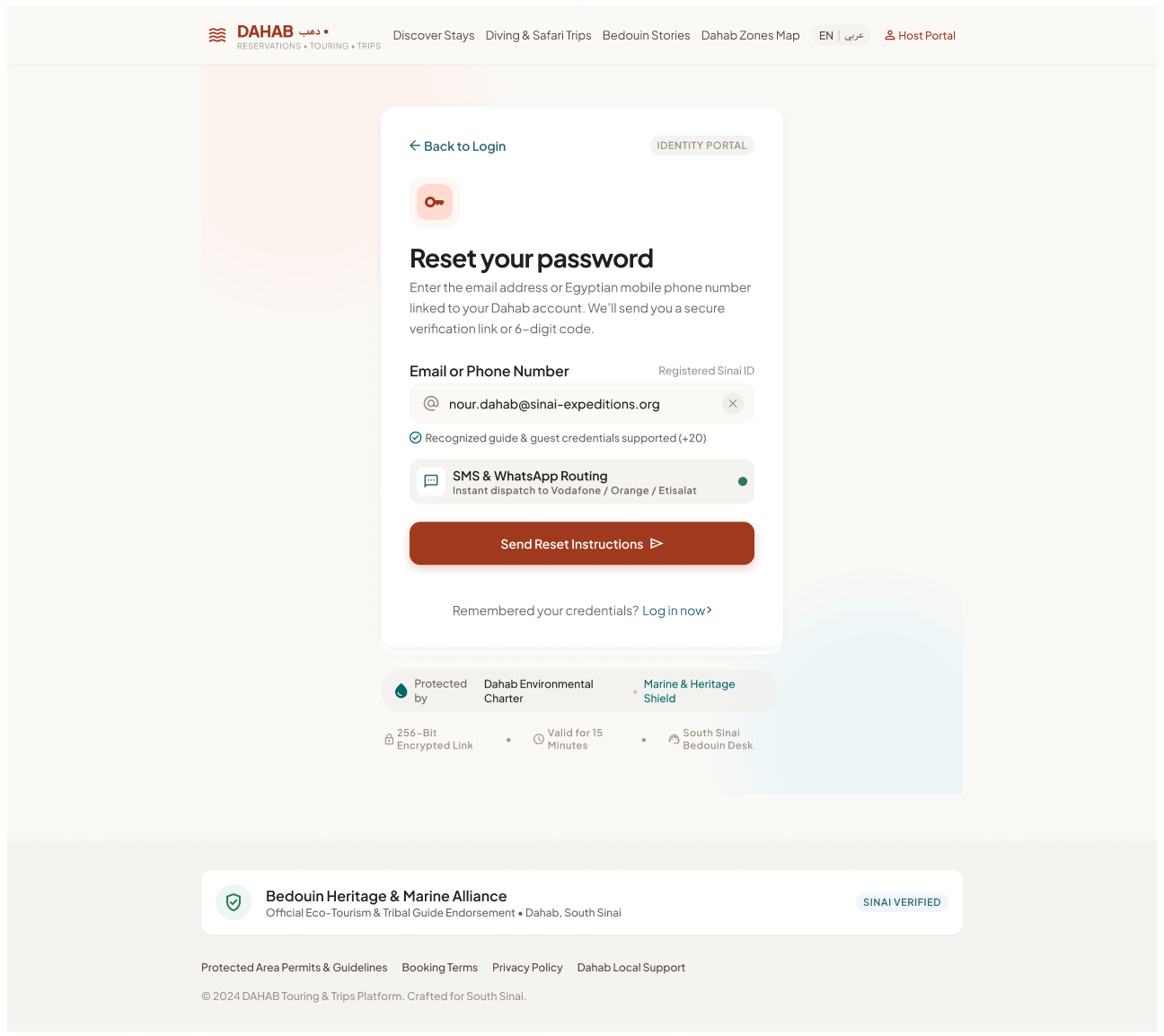
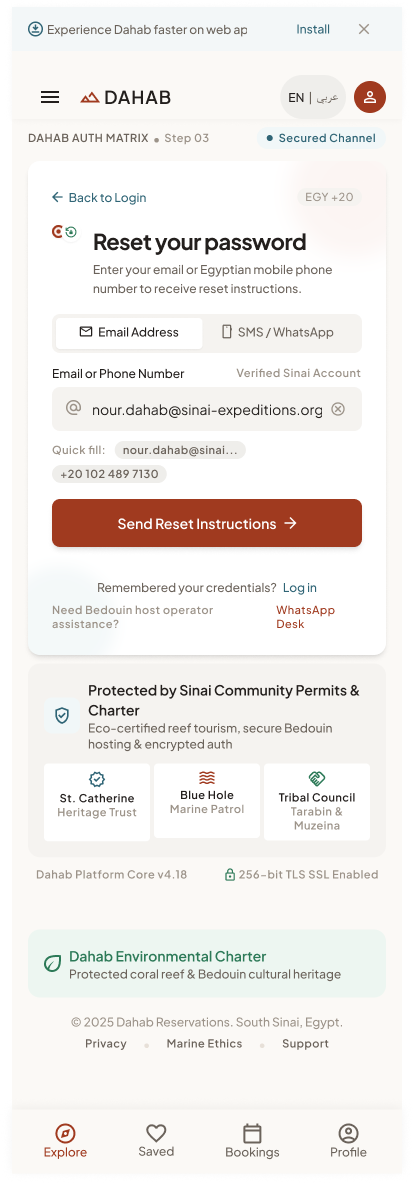
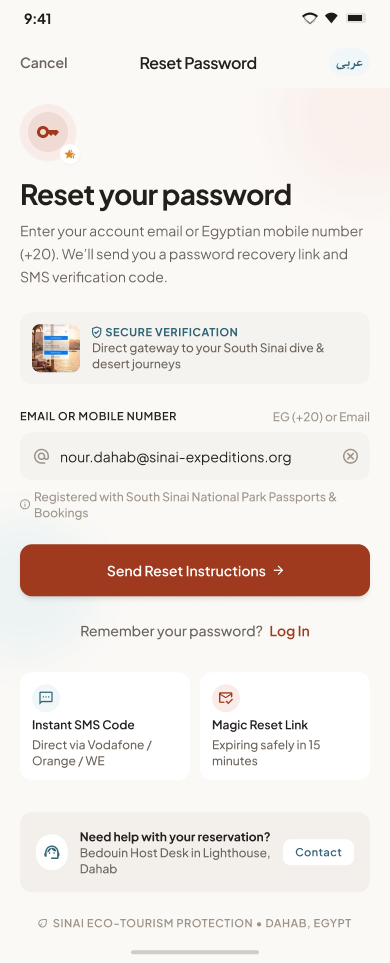
Purpose: let a guest recover access with a 6-digit code sent to their email (no reset link — decision 3 Oct 2026). Entry: "Forgot password?" on Login, "Reset password now" in the error state. Exit: "Back to Log In", or a correct code → Set new password.
 Open in Figma · 16:2916
 Open in Figma · 16:2590
 Open in Figma · 16:2184
 Open in Figma · 16:1939
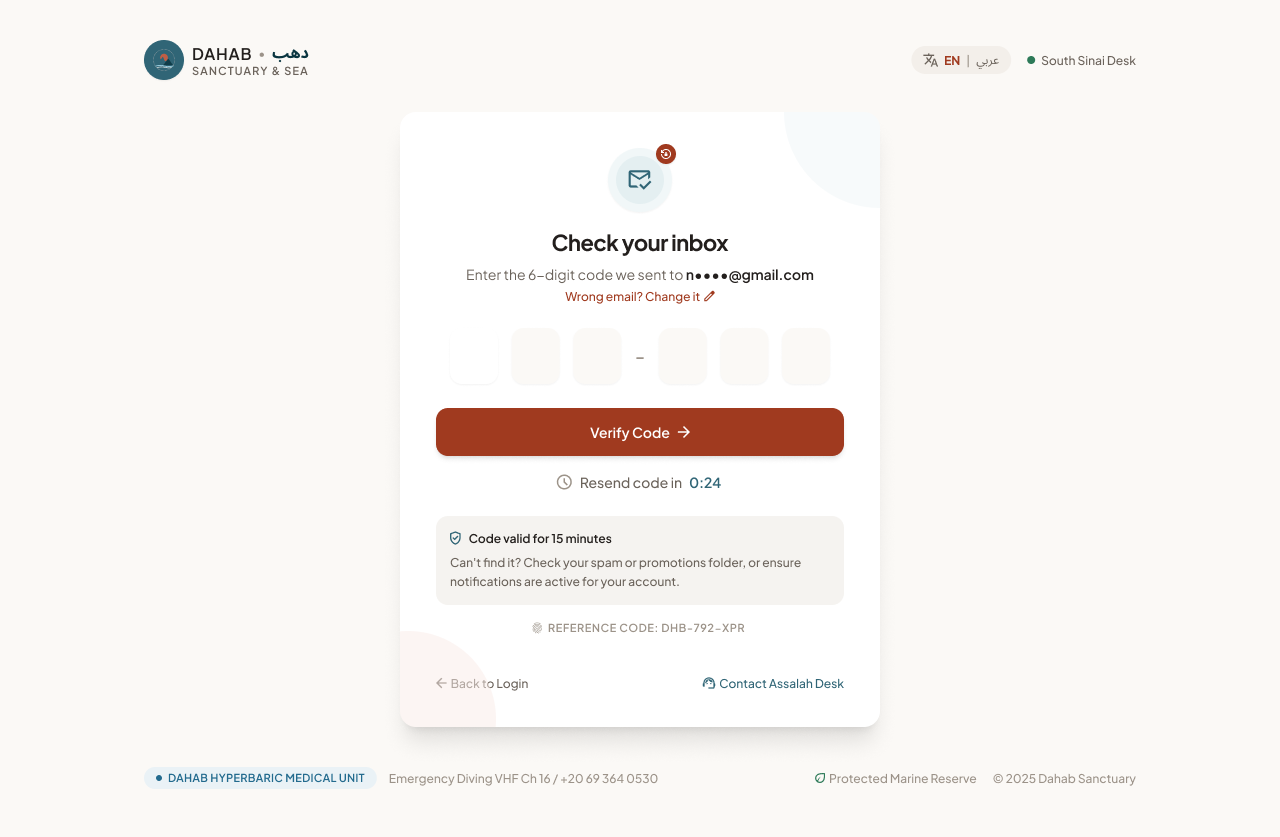 Open in Figma · 105:878
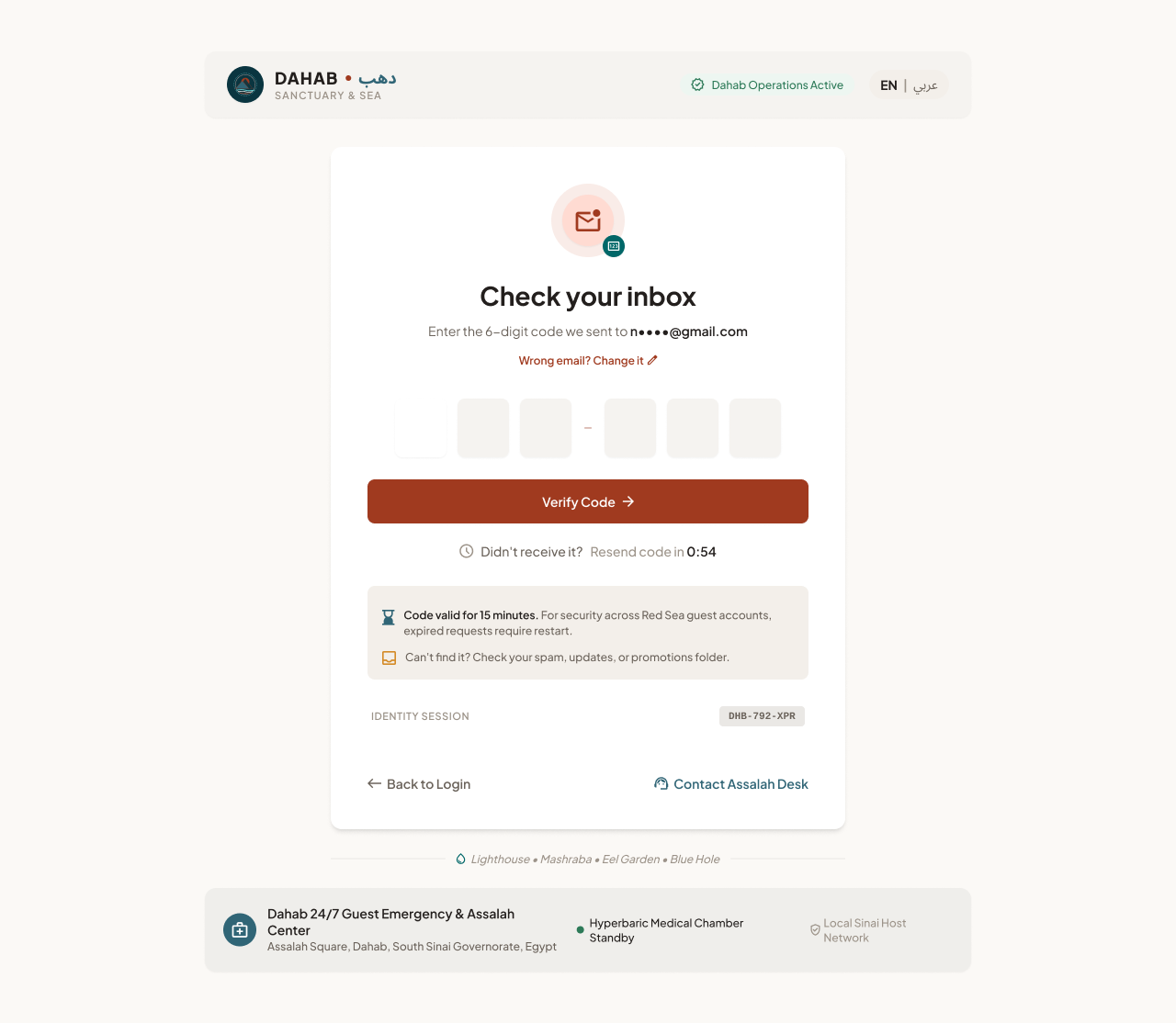 Open in Figma · 105:735
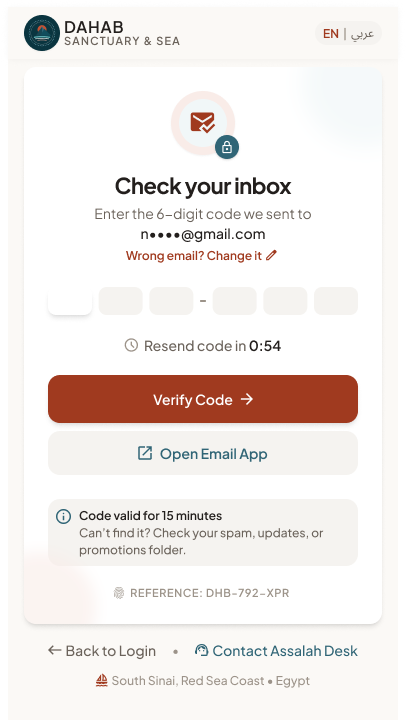 Open in Figma · 105:366
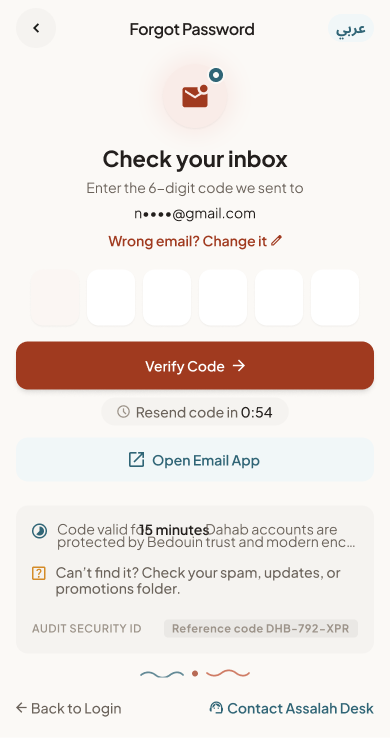 Open in Figma · 105:634
UI elements
| Element | Type | Behaviour / rule |
|---|---|---|
| Back to Login | Link | Returns to Login. |
| Email address | Email input | Email only (placeholder "e.g. name@example.com"). The Mobile Web channel tabs and +20 prefix were removed. |
| Quick fill chips (mobile web) | Chips with previous identifiers | Pre-fills from values remembered on this device only (see §7 privacy note). |
| Delivery tip | Info callout | "If the email doesn’t arrive within a minute, check your spam or promotions folder." |
| Send Reset Code | Primary button | Emails a 6-digit reset code (no link). |
| Remember your password? Log in | Link | Back to Login. |
| Code Sent state: Open Email App | Button | Opens the default mail app (native/mobile). |
| Resend code (0:54) | Button with countdown | Disabled until the countdown ends. |
| Reference code "DHB-792-XPR", "Valid for 15 minutes", "Secure email delivery" | Info block | Shows channel, expiry and a support reference. |
| Contact Assalah Desk / Support Desk | Link | Human support fallback. |
Step-by-step
| # | Guest does | System does |
|---|---|---|
| 1 | Enters email, taps Send Reset Instructions | Validates format. |
| 2 | — | If an account exists: emails a 6-digit reset code (no link), valid 15 minutes. The response is identical whether or not the account exists (no account enumeration). |
| 3 | — | Shows the Code sent step with the masked email, 6 code boxes, expiry, reference code and resend countdown. Designed in the Code Sent frames (4 breakpoints). |
| 4 | Enters the code, taps Verify Code | Correct → Set New Password (§4.6). Wrong → attempts left (max 5). |
| 5 | Sets a new password | Invalidates old sessions, confirms success, signs in or returns to Login. |
4.4 Verification OTP
Purpose: verify the guest's email after registration (FR-1.5); reused for password-reset codes and email changes. Entry: after Register; after login of an unverified account. Exit: logged-in destination; "Change it" returns to the previous form.
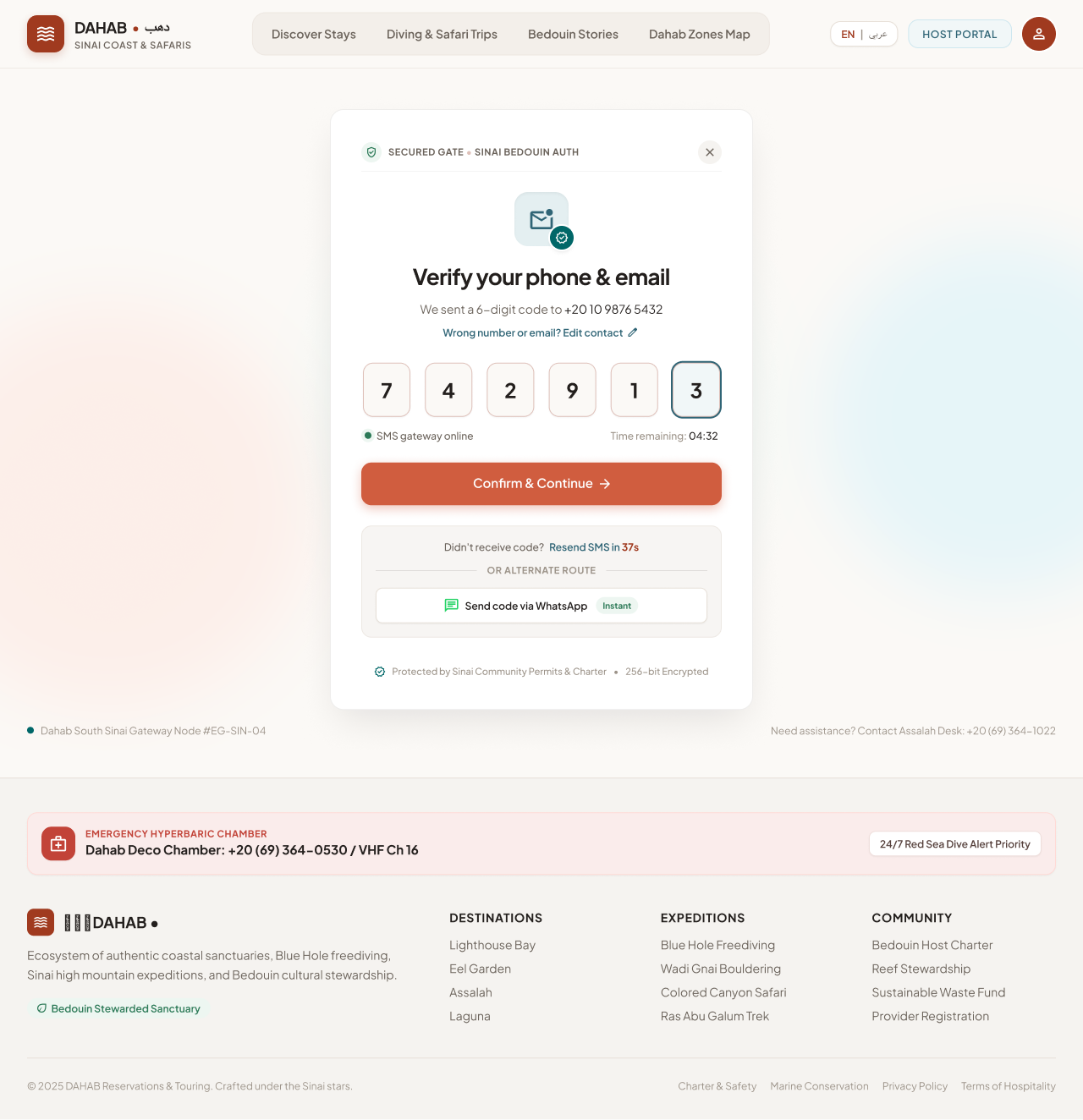 Open in Figma · 16:3832
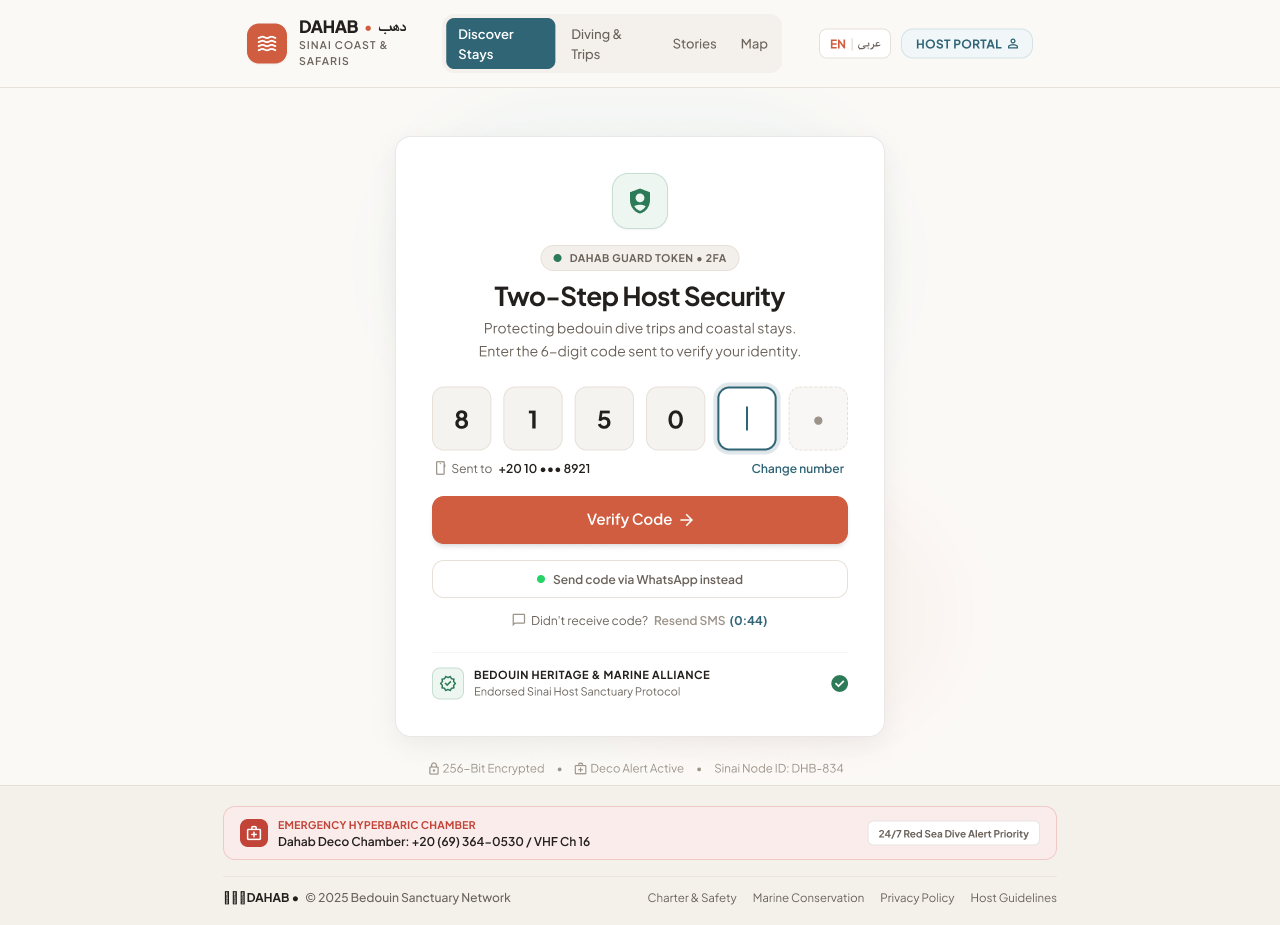 Open in Figma · 16:3671
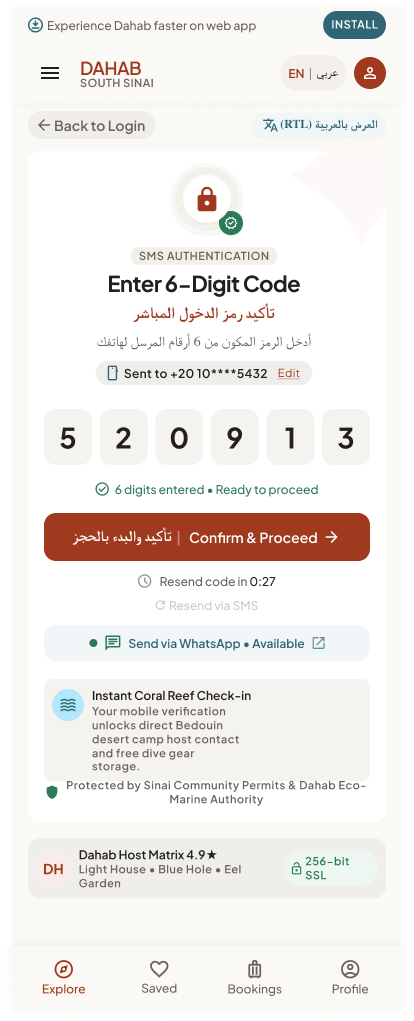 Open in Figma · 16:3476
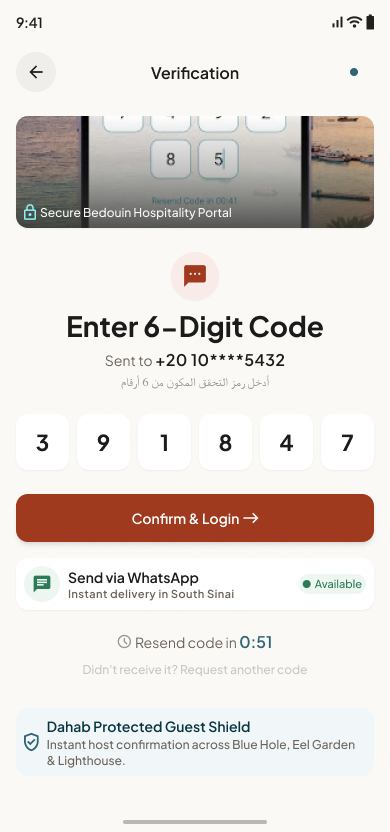 Open in Figma · 16:3366
UI elements
| Element | Type | Behaviour / rule |
|---|---|---|
| Destination line | Text | "We sent a 6-digit code to n****@sinai-expeditions.org" (masked email). |
| Wrong email? Change it | Link | Returns to edit the email; a new code is sent. |
| 6-digit code boxes | OTP input (6 cells) | Auto-advance, paste of the full code, numeric keyboard, autocomplete="one-time-code" (iOS suggests codes from Mail). |
| Time remaining 04:32 | Countdown | Code validity (≈5 min on desktop). |
| Confirm & Continue / Confirm & Login / Verify Code | Primary button | Enabled only when 6 digits are entered ("6 digits entered • Ready to proceed"). |
| Resend code in 37s | Button with cooldown | Re-sends the email after cooldown. |
| العرض بالعربية (RTL) (mobile web) | Toggle | Switches to Arabic. |
Step-by-step
| # | Guest does | System does |
|---|---|---|
| 1 | Arrives from Register | Code already sent; countdown starts. |
| 2 | Types / pastes / auto-fills the 6 digits | Enables the confirm button. |
| 3 | Taps Confirm | Validates code and expiry. |
| 4a | Correct | Marks the email verified, signs in, redirects. |
| 4b | Wrong / expired | Error state not designed — proposed inline "Incorrect code. 2 attempts left." / "Code expired — resend a new one." |
| 5 | Taps Resend (after cooldown) | Emails a new code, invalidates the previous one, restarts timers. |
4.5 Edit Profile
Purpose: manage personal details used by hosts and for Sinai permits. Entry: Profile tab (native), avatar menu (web). Exit: Save Changes / Done; Discard / Cancel.
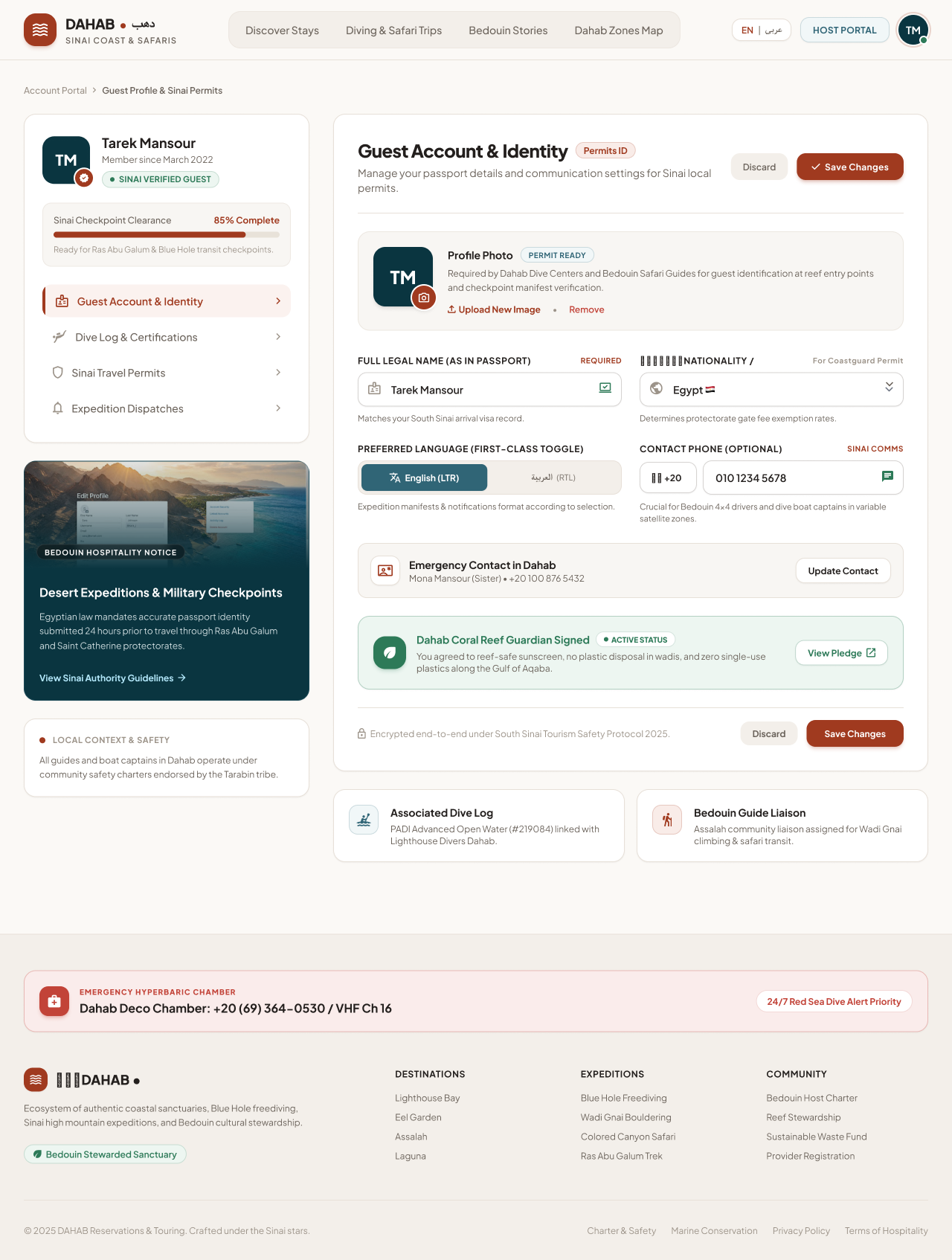 Open in Figma · 16:4772
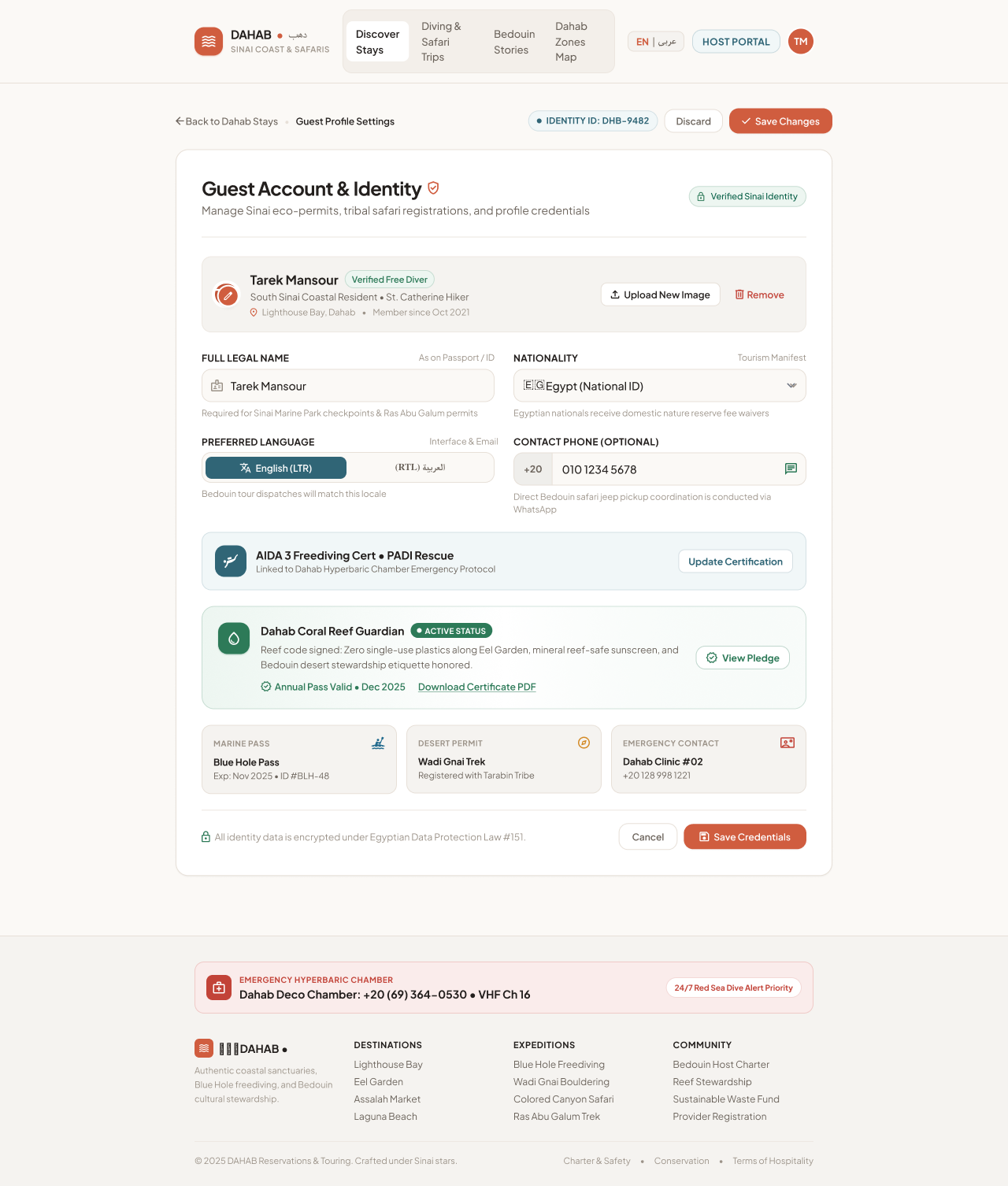 Open in Figma · 16:4421
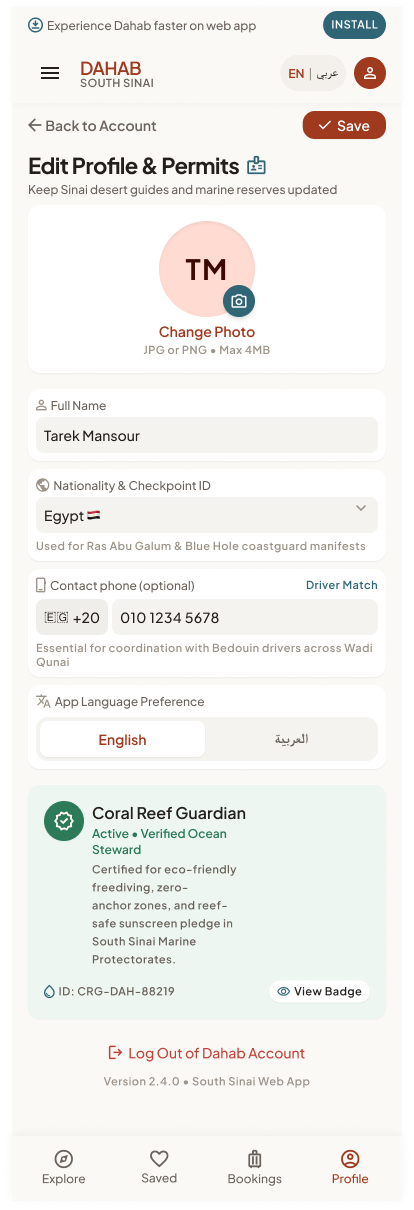 Open in Figma · 16:4239
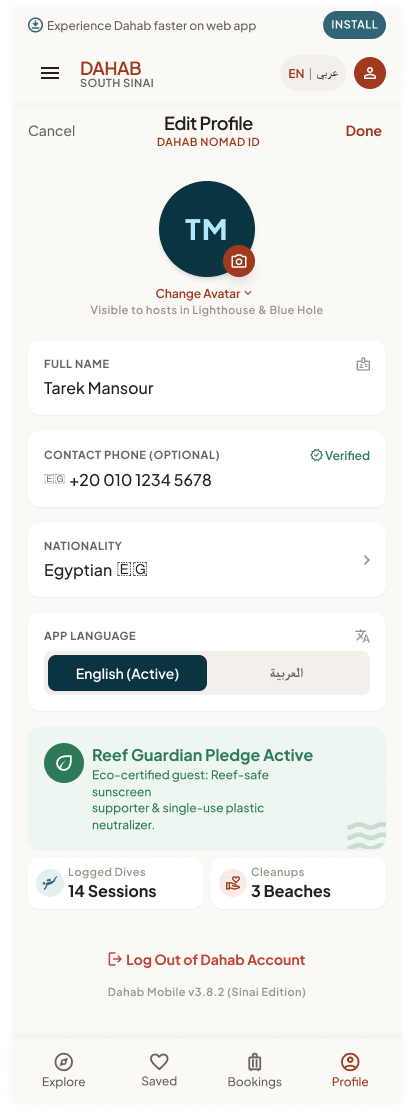 Open in Figma · 16:4059
UI elements (union of all breakpoints)
| Element | Type | SRS | Behaviour / rule |
|---|---|---|---|
| Profile photo — Upload New Image / Change Photo / Remove | Image upload | FR-1.3 | JPG or PNG, max 4 MB (mobile web copy). Visible to hosts. |
| Full legal name (as in passport) | Text, required | FR-1.3 | Used on bookings and permit manifests. |
| Nationality | Select | FR-1.3 | Helper: "Determines protectorate gate fee exemption rates." |
| Contact phone (optional; +20 default, country code picker) | Phone input, optional, no verification | FR-1.3 | Not used for login; no OTP. Changing the email needs a 6-digit code sent to the new address (4.4). |
| Preferred language — English (LTR) / العربية (RTL) | Segmented toggle | FR-1.3, FR-20.2 | Changes app language and the language of notifications/manifests. |
| Emergency contact in Dahab — Update Contact | Sub-form | not in SRS | Name, relation, phone. |
| Passport / National ID ("Tourism Manifest", "Permits ID") | Select + ID field | not in SRS | Sensitive → encrypt at rest (NFR-9). |
| Dive certifications (e.g. "PADI Advanced Open Water #219084", "AIDA 3 • PADI Rescue") — Update Certification | Sub-form | not in SRS | Could feed the activity prerequisite check (module 07). |
| Reef Guardian pledge — View Pledge / Download Certificate PDF | Badge + link | not in SRS | — |
| "Sinai Checkpoint Clearance 85% complete" | Progress indicator | not in SRS | Profile completeness. |
| Save Changes / Done / Save / Save Credentials | Primary action | FR-1.3 | Validates & saves; success toast (not designed). |
| Discard / Cancel | Secondary | — | Reverts unsaved changes (confirm if dirty — not designed). |
| Log Out of Dahab Account | Destructive link (native only) | FR-1.2 | Ends session, returns to Discovery Home. |
Step-by-step
| # | Guest does | System does |
|---|---|---|
| 1 | Opens Profile → Edit | Loads current values. |
| 2 | Changes photo | Uploads to object storage/CDN, shows preview. |
| 3 | Edits name / nationality / language | Marks form dirty; Save enabled. |
| 4 | Changes email address | On save, emails a 6-digit code to the new address; the email is only replaced after verification. Changing the contact phone saves directly. |
| 5 | Taps Save Changes | Validates, saves, confirms. If language changed, UI re-renders in the new language/direction. |
| 6 | Taps Discard / Cancel | Reverts to stored values. |
4.6 Set New Password
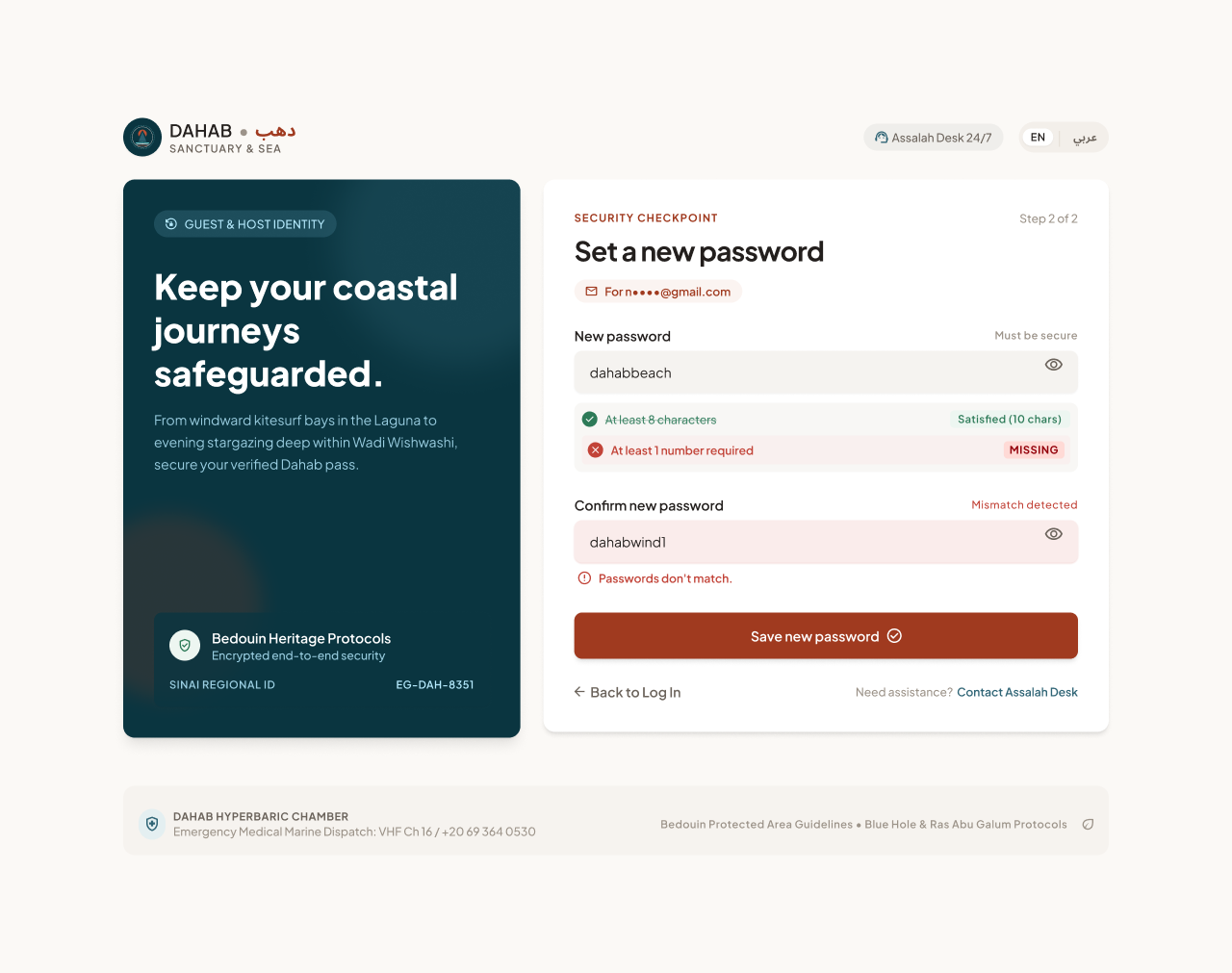
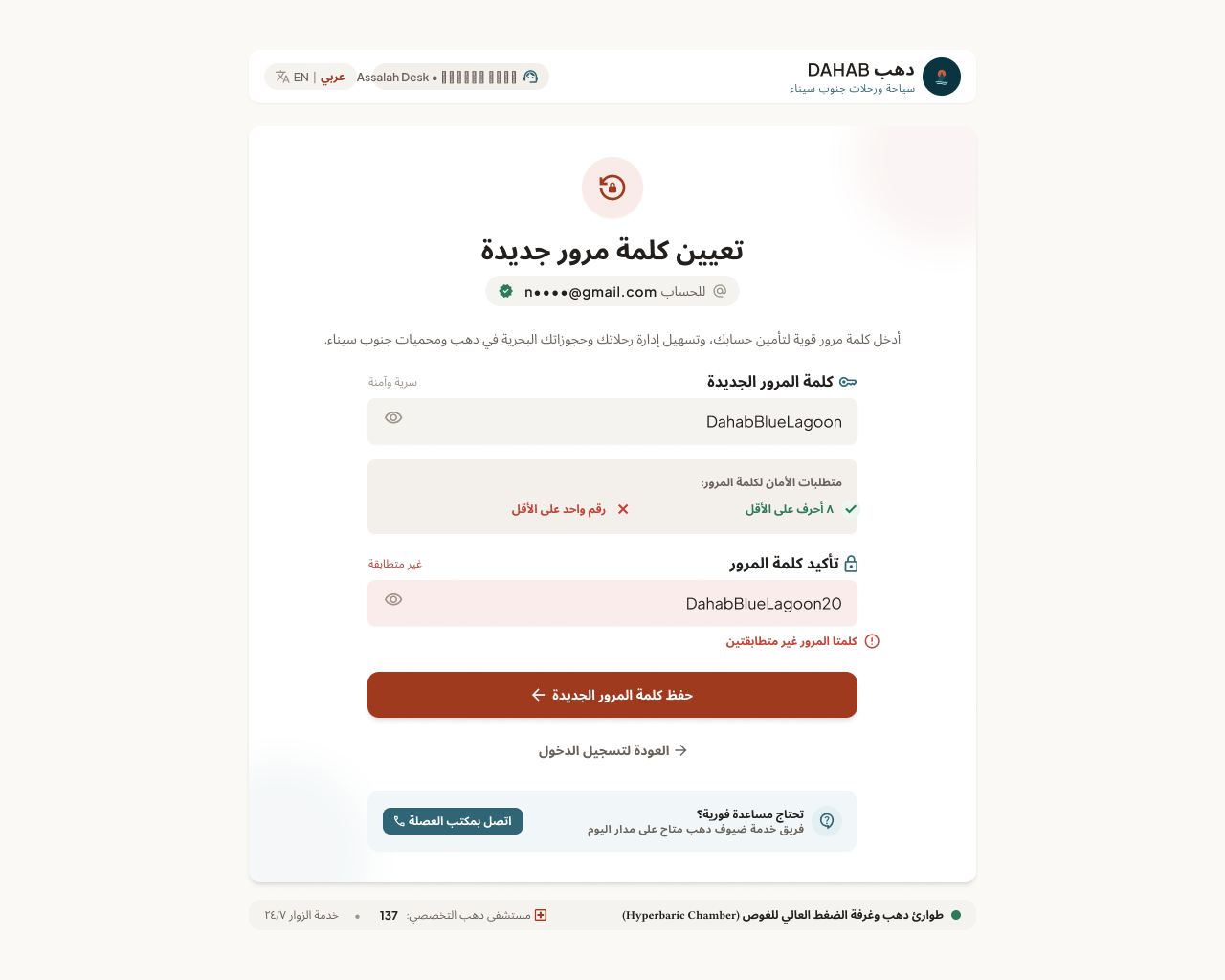
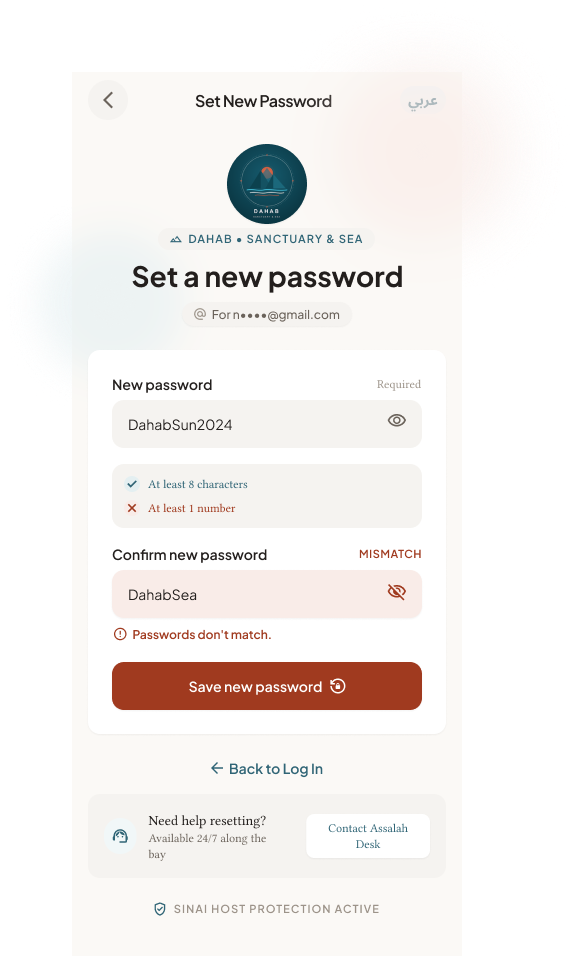
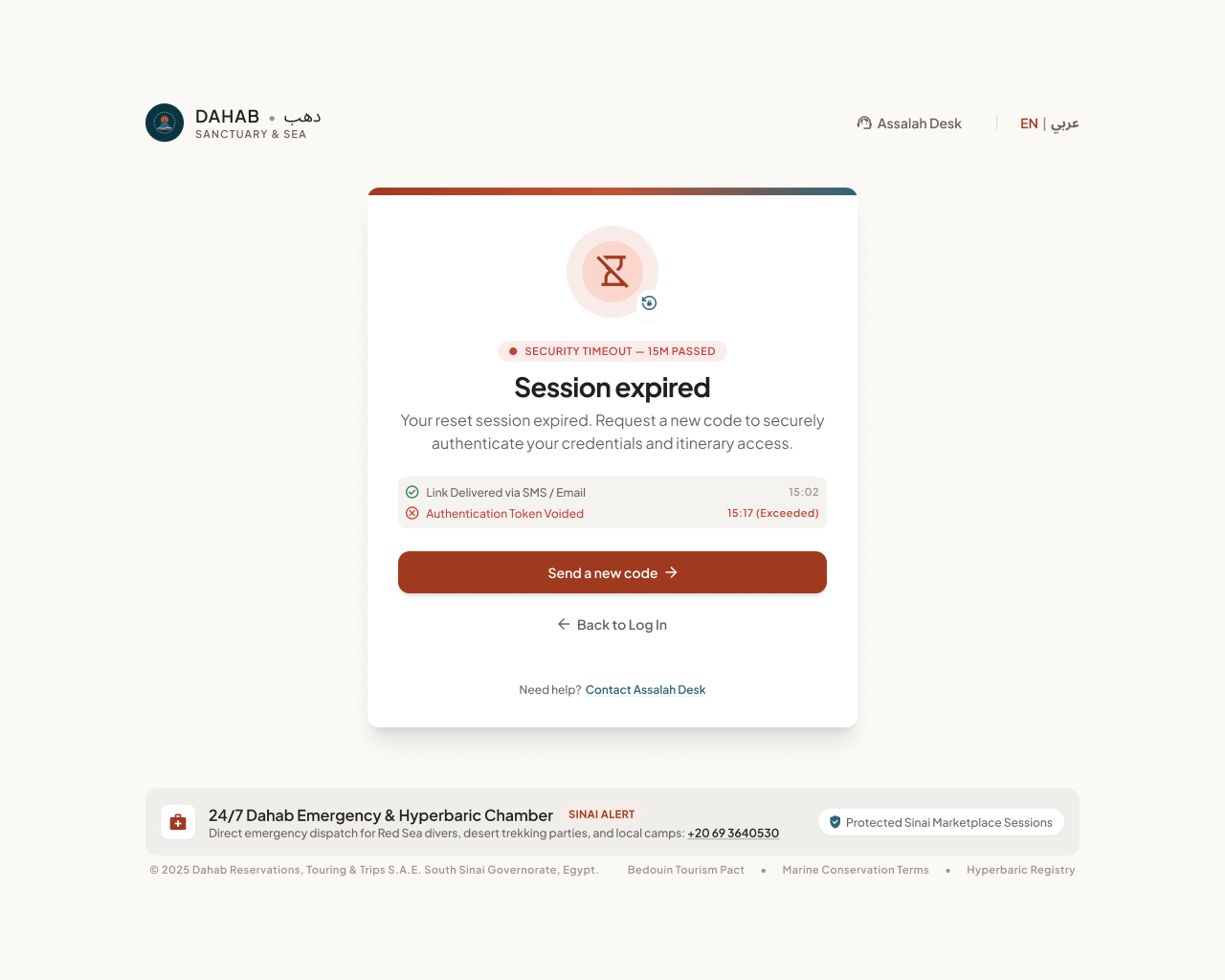
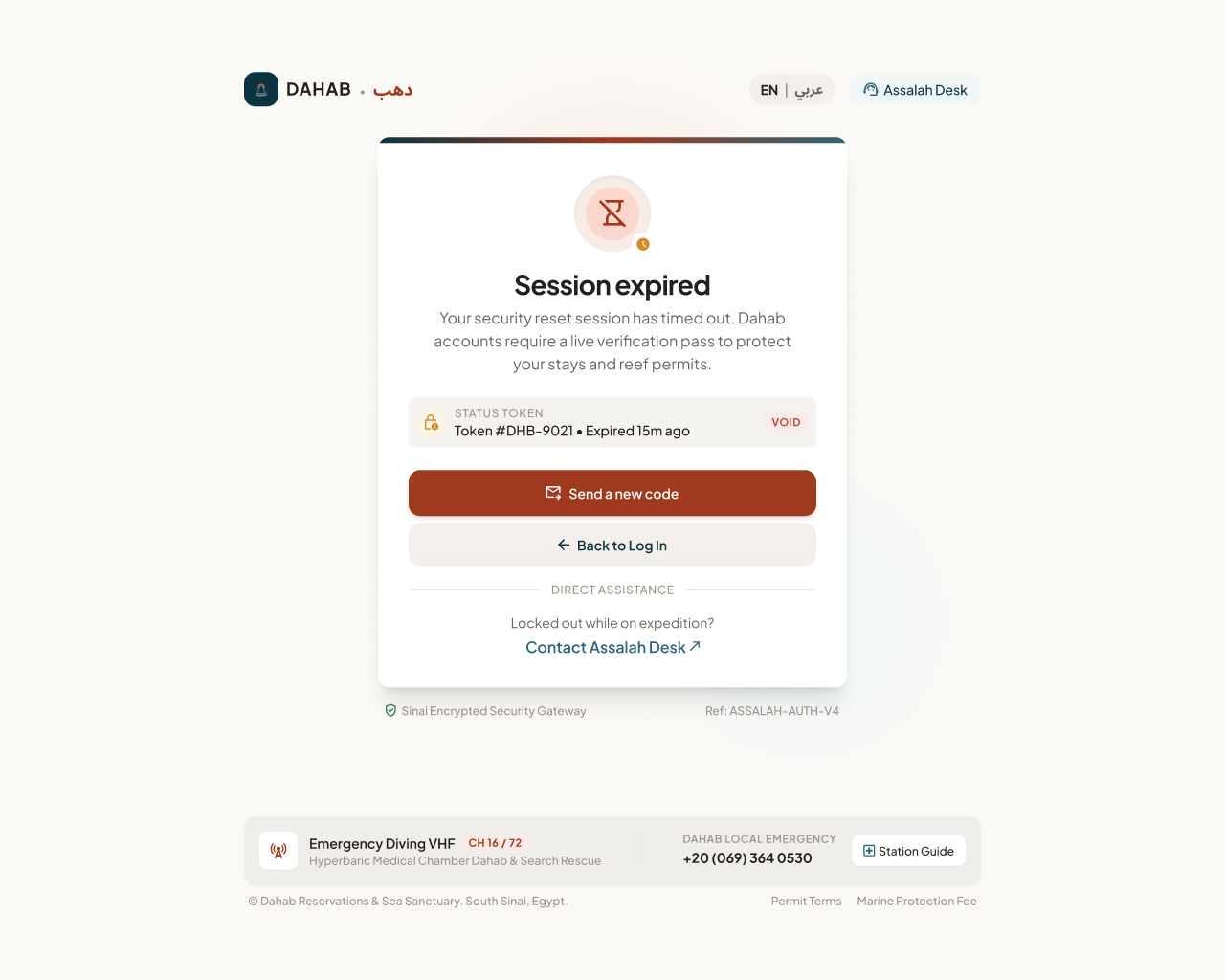
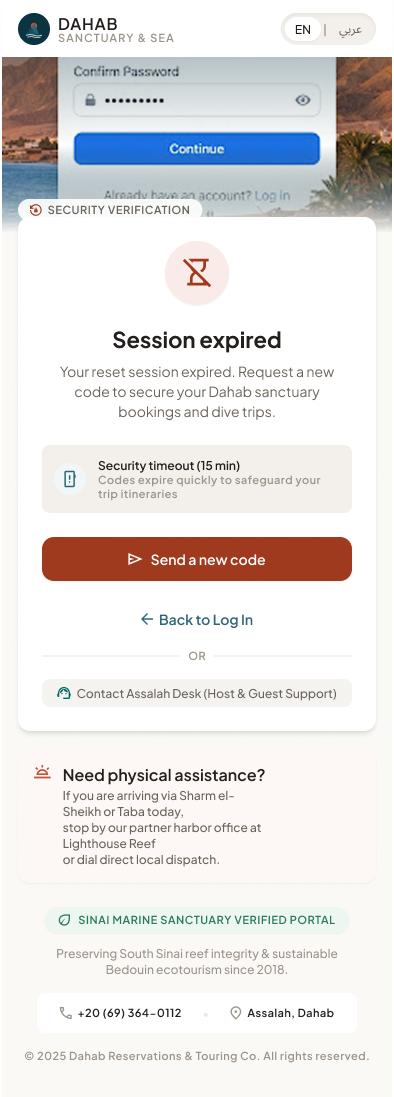
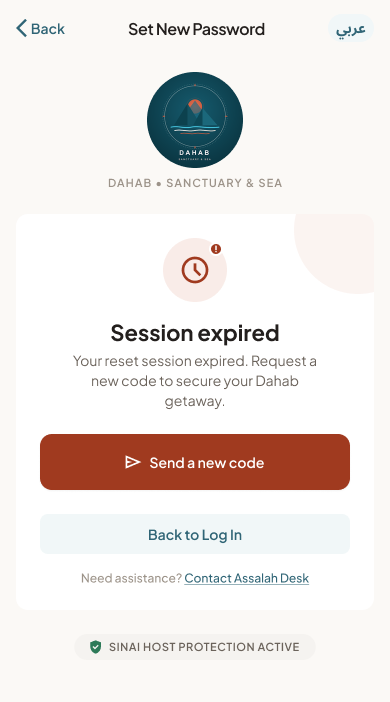
Purpose: let a guest choose a new password after entering the correct 6-digit reset code (4.3). Entry: only after Verify Code succeeds — no email link, no deep link. Exit: Success → signed in (remembered action or Discovery Home) · Session expired → Forgot Password · Back to Log In.
States (all 4 breakpoints, designed 3 Oct 2026): Default form · Validation Error (Tablet = Arabic RTL specimen) · Session Expired · Success. Figma frame names: Set New Password — <breakpoint> (<state>).
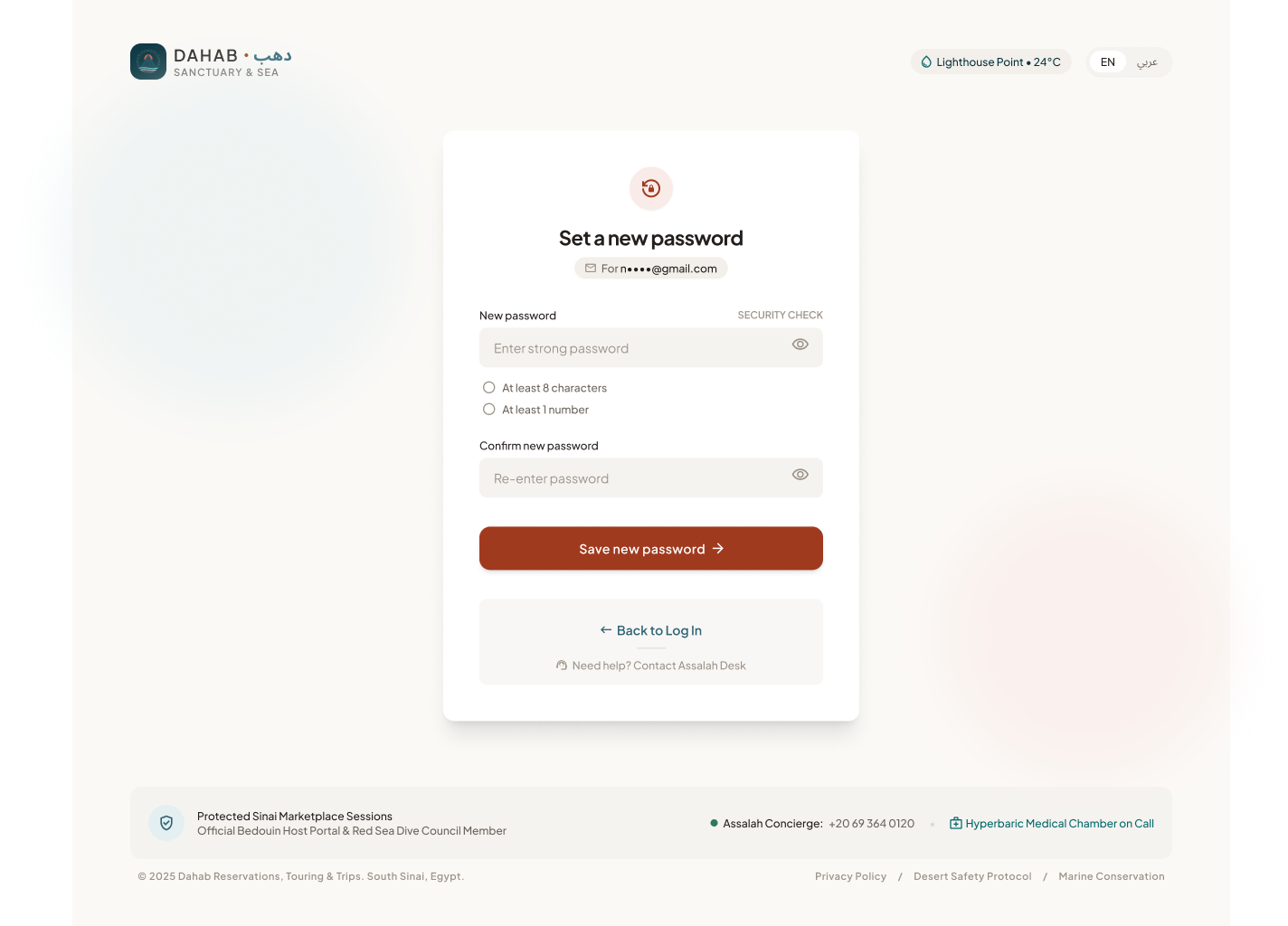 Open in Figma · 105:217
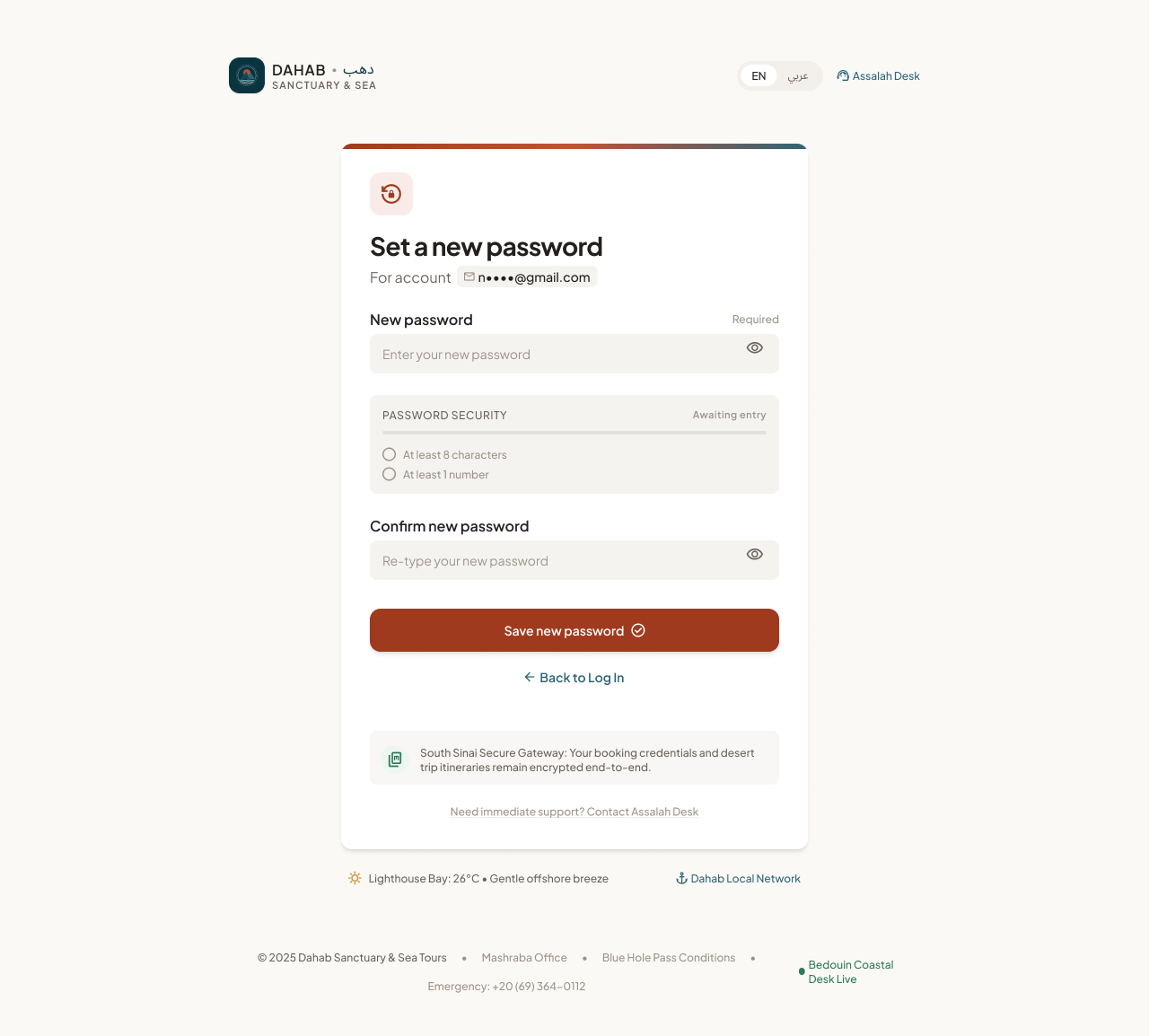 Open in Figma · 105:482
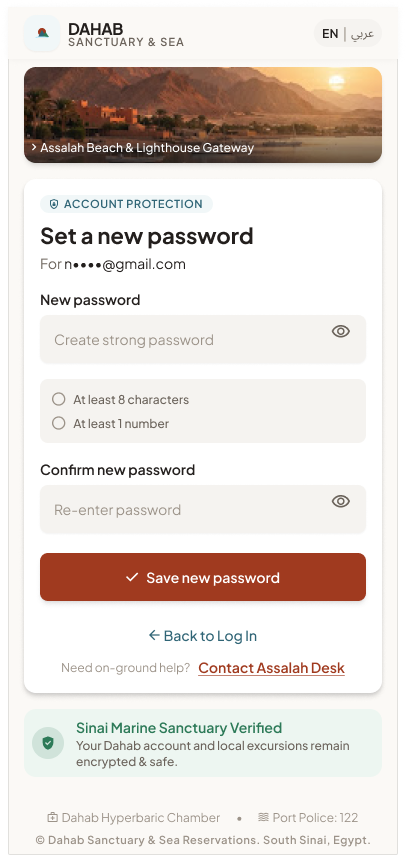 Open in Figma · 105:2
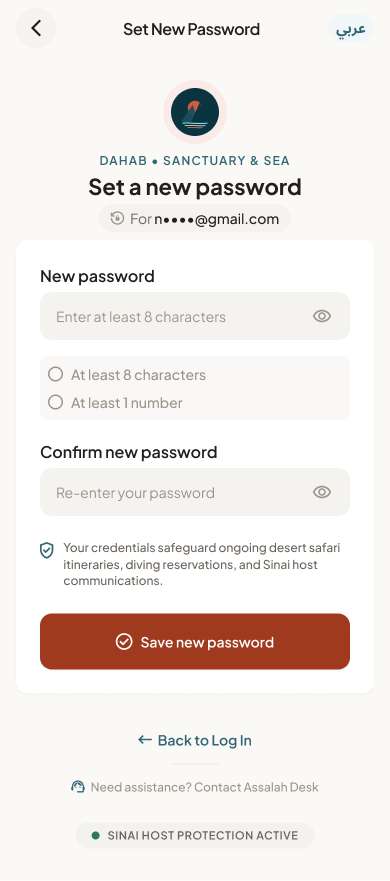 Open in Figma · 105:123
 Open in Figma · 107:1831
 Open in Figma · 107:1555
 Open in Figma · 107:1712
 Open in Figma · 107:1451
 Open in Figma · 107:1306
 Open in Figma · 107:1123
 Open in Figma · 107:1007
 Open in Figma · 107:1252
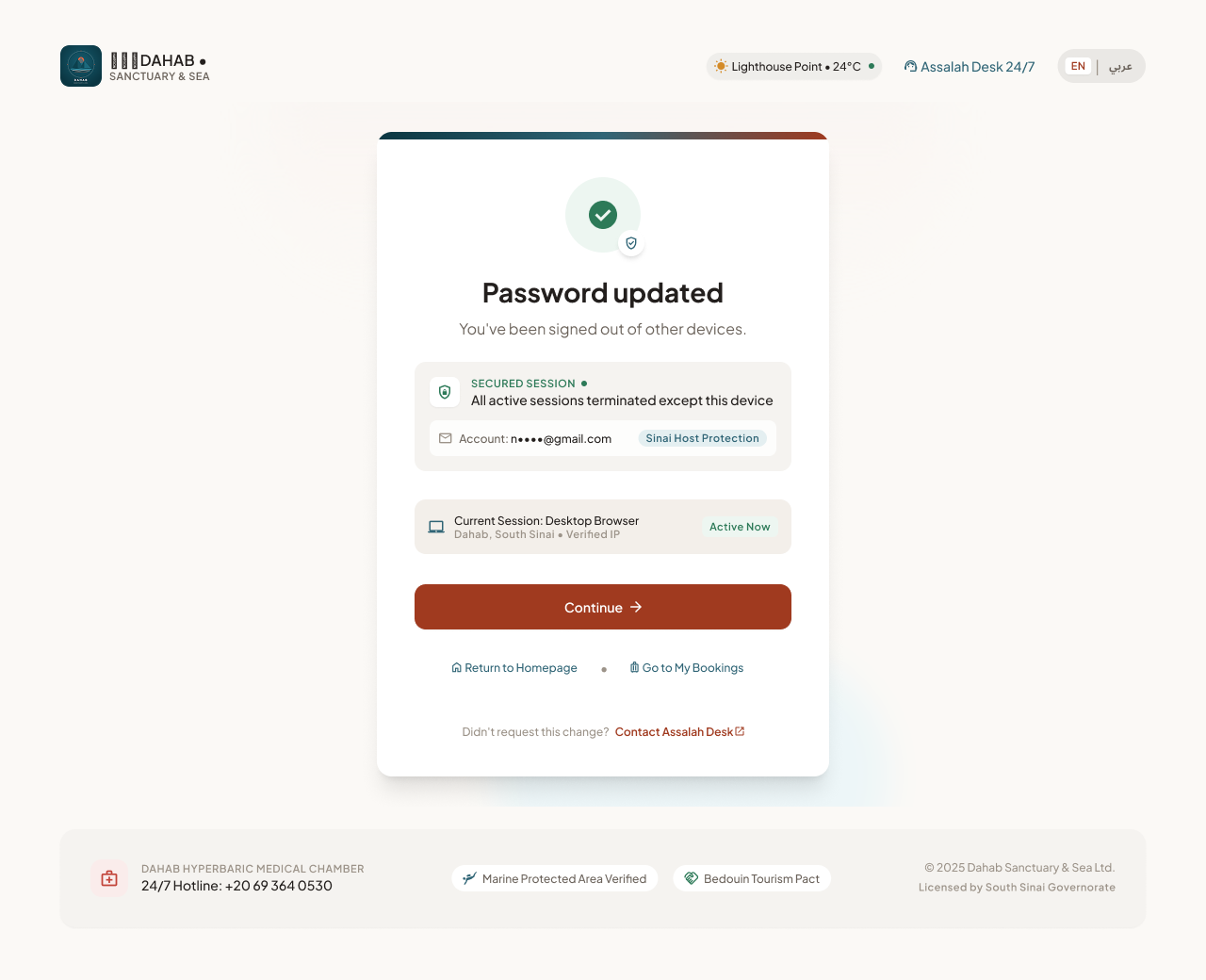 Open in Figma · 108:2293
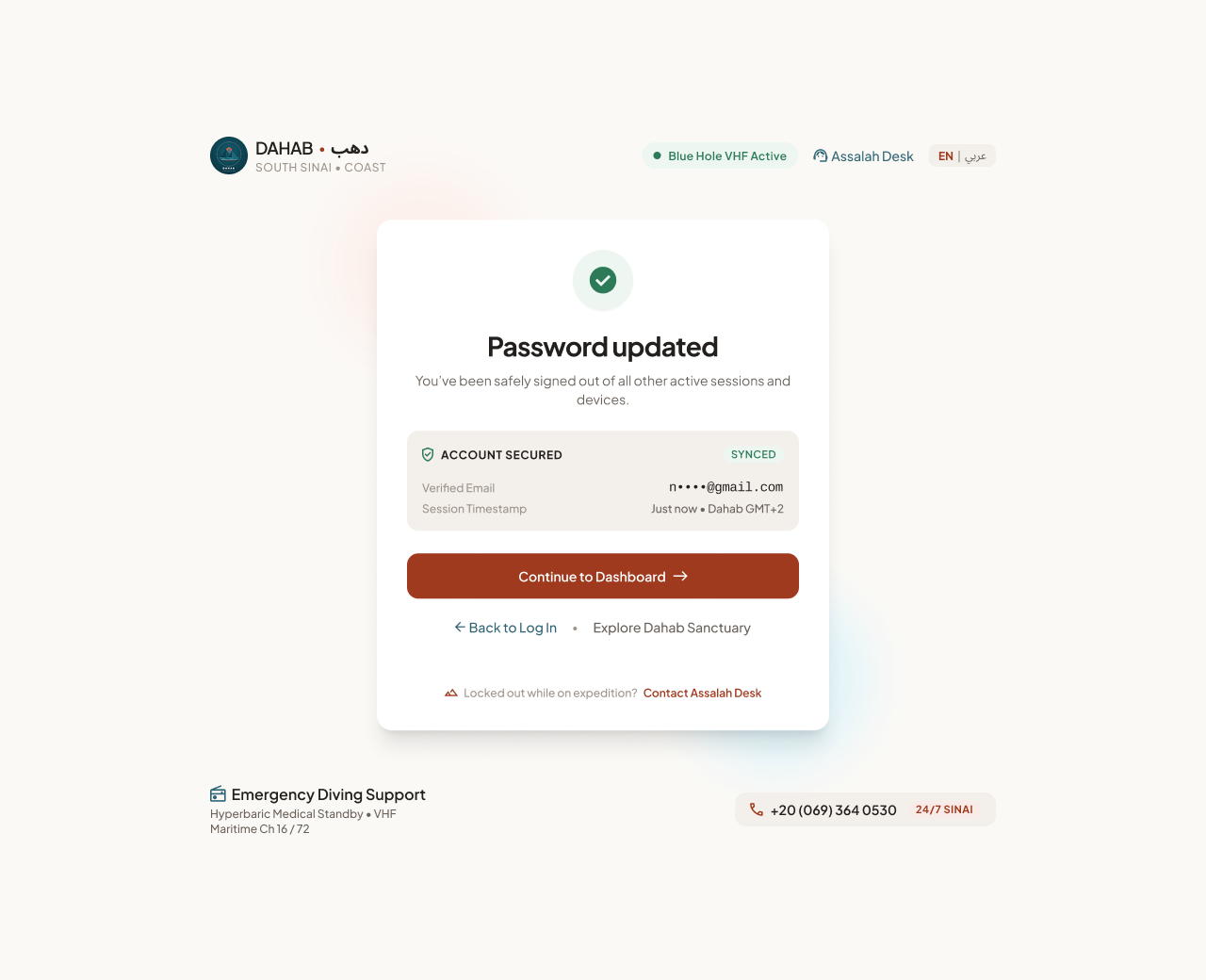 Open in Figma · 108:2002
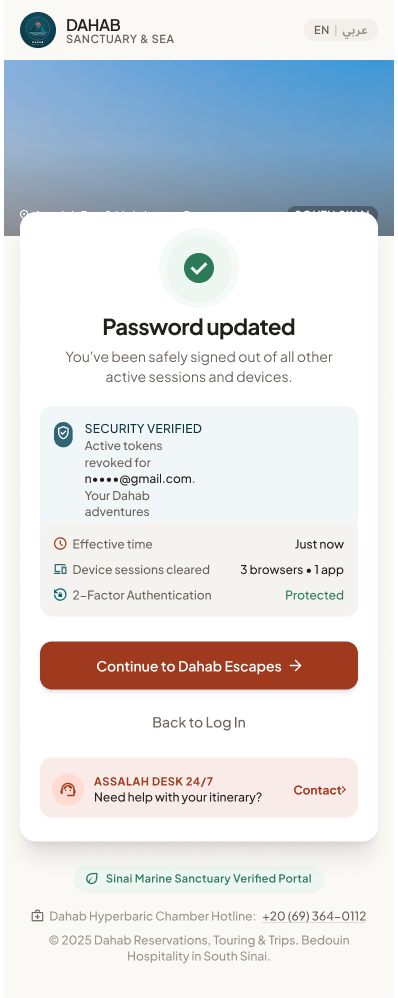 Open in Figma · 108:2106
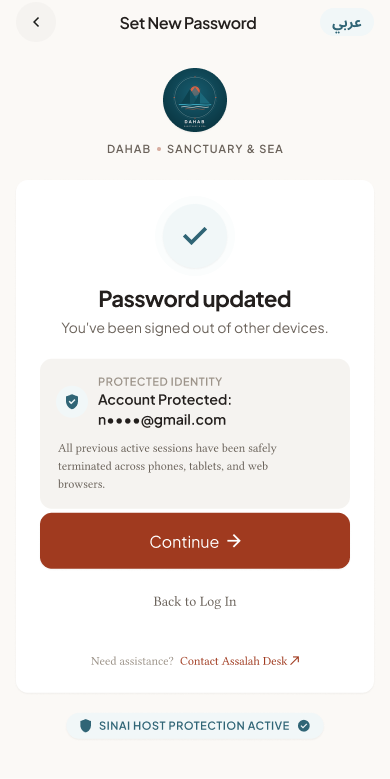 Open in Figma · 108:2222
Design review — Success state. Stitch added elements that are not in the spec: secondary links ("Return to Homepage", "Go to My Bookings"), a "Sinai Host Protection" pill, a device-session card and, on Mobile Web, "Device sessions cleared: 3 browsers • 1 app". The spec only requires: confirmation + one primary Continue button. The session-count row needs a session-listing feature that is not specced — remove it, or add it as a new story. Primary button label differs by breakpoint ("Continue", "Continue to Dashboard", "Continue to Dahab Escapes") — pick one.
UI elements
| Element | Type | Behaviour / rule |
|---|---|---|
| "Set a new password" · "For n••••@gmail.com" | Title + masked email | Shows which account is being reset. |
| New password | Password input, show/hide | Live checklist: "At least 8 characters" · "At least 1 number" (same rule as Register, G4). |
| Confirm new password | Password input | Must match — "Passwords don't match." |
| Save new password | Primary button | Spinner while saving; stores the new hash, signs out all other devices, emails a "password changed" notice. |
| Session expired | State | "Your reset session expired. Request a new code." + Send a new code (reset session lasts 10 min). |
| Success | State | "Password updated — You've been signed out of other devices." + Continue (signs in). |
Step-by-step
| # | Guest does | System does |
|---|---|---|
| 1 | Enters the correct code on Forgot Password | Opens this screen with a 10-minute single-use reset session. |
| 2 | Types and confirms a new password | Live checklist and match check. |
| 3 | Taps Save new password | Validates, saves the hash, revokes all sessions, clears any lockout, sends the notice email. |
| 4 | Taps Continue on Success | Signed in on this device. |
5. Cross-screen business rules
- One account per email. The phone is an optional contact field and is not unique.
- Password policy (to confirm, see §7): minimum 8 characters incl. at least 1 number; stored with bcrypt/argon2 (NFR-3).
- Verification: a new account can browse but must be verified before completing a booking (NFR-6 keeps this to Register + OTP).
- OTP: 6 digits, single use, expires (≈5 min registration; 15 min password reset), resend cooldown ≈60 s, max attempts before a new code is required (to define). Channel: email only (decision 29 Sep 2026).
- Lockout: after N failed logins (design implies 5 — "3 attempts remaining") lock temporarily; unlock via reset or timeout (duration to define).
- Session: "Keep me signed in" = 30-day refresh token; otherwise session-only.
- Language: EN/AR toggle available on every auth screen; switching keeps typed values; Arabic flips layout to RTL.
- Privacy: error messages must not reveal whether an email is registered (login and forgot password).
- Accessibility: every input has a visible label, errors are announced to screen readers, OTP cells are a single labelled group.
6. Story candidates for Jira
Epic: GUEST-AUTH — Guest Account & Authentication
| Key idea | Story | Acceptance criteria (Given / When / Then) |
|---|---|---|
| AUTH-1 | As a guest, I want to register with my name, email and password so that I can book stays and trips. | • Given valid data, when I tap Create Account, then an unverified account is created and I land on Verification OTP. • Given an invalid email or missing name, when I submit, then I see the summary alert and inline errors from the design and no account is created. • Given an email that already exists, when I submit, then I am told to log in or reset my password. • Password stored hashed; consent (terms version + timestamp) recorded. |
| AUTH-2 | As a guest, I want to sign up / log in with Google. | • New email → account created and signed in. • Existing email → provider linked, signed in. • Cancel at Google → back on the form, no error. |
| AUTH-3 | As a guest, I want to sign up / log in with Apple. | Same as AUTH-2; supports Apple private relay email; available on iOS, Android and web. |
| AUTH-4 | As a new guest, I want to verify my email with a 6-digit code so that my account is trusted. | • Code emailed after registration; masked email shown. • Paste and code suggestion work; confirm enabled at 6 digits. • Correct code → verified + signed in. • Wrong/expired code → error message, attempts limited. • Resend available after cooldown. |
| AUTH-5 | As a returning guest, I want to log in with my email and password. | • Correct → signed in and returned to the page I came from. • "Keep me signed in" keeps me logged in 30 days. |
| AUTH-6 | As a guest, I want clear feedback when my credentials are wrong so that I can recover. | • Generic "Incorrect email or password" message. • Remaining attempts shown; lockout after the limit with "Reset password now". |
| AUTH-7 | As a guest, I want to request a password reset by email. | • Same confirmation shown whether or not the account exists. • 6-digit code only (no link), valid 15 minutes, max 5 attempts; resend after countdown; reference code shown. |
| AUTH-8 | As a guest, I want to set a new password after my reset code is verified. | Designed (4.6). New password + confirm, same policy; old sessions invalidated; success message. |
| AUTH-9 | As a guest, I want to edit my profile (photo, name, nationality, language, contact phone). | • Changes saved and shown after reload. • Photo JPG/PNG ≤ 4 MB. • Email change requires a code sent to the new email; phone is optional with no OTP. • Language change re-renders UI (LTR/RTL). |
| AUTH-10 | As a guest, I want to log out on any platform. | Log out available on native (designed) and web (avatar menu — needs design); session revoked. |
| AUTH-11 | As an Arabic-speaking guest, I want all auth screens in Arabic RTL. | All labels, errors and placeholders translated; layout mirrored as in the Tablet RTL specimens; strings externalised (NFR-7). |
| AUTH-12 (tech) | Security baseline for auth (NFR-3). | HTTPS only, argon2/bcrypt, rate limiting on login/OTP/reset endpoints, OTP and reset tokens single-use. |
7. Gaps, inconsistencies & open questions (from comparing SRS ↔︎ Figma)
| # | Finding | Screens | Suggested decision |
|---|---|---|---|
| G1 | "Set new password" screen is missing — the reset flow ended at the link step ("Recovery link dispatched" frames). | Forgot Password | Design a Set New Password screen + states (all 4 breakpoints). Done 3 Oct 2026 — 16 frames + 4 Code Sent frames in Figma (see 4.3, 4.6); Success-state extras to trim. |
| G2 | OTP error states missing (wrong code, expired code, too many attempts). | Verification OTP | Add sibling states. |
| G3 | Where does the phone number come from? OTP says "We sent a code to +20 10 9876 5432", but Register has no phone field. | Register → OTP | Decided 29 Sep 2026: email only. No phone at registration; verification, login and reset by email. Figma copy updated. |
| G4 | Password rule differs by breakpoint: "8+ chars" (native), "Min. 8 characters" (mobile web), "at least 8 characters with 1 number" (desktop), "8 letters & numbers with at least one symbol" (Arabic tablet). | Register | Pick one rule and use identical copy in EN/AR. |
| G5 | Tablet Register has no Full Name field and no Apple button; Tablet Login has both SSO buttons. | Register (Tablet) | Align Tablet with other breakpoints. |
| G6 | Error-state desktop screens use a different header/footer (nav "Cottages & Camps · Freedive & Scuba · Bedouin Treks · Environmental Charter · HOST A REEF CHALET · Sign In") and the brand written "ذهب" (gold) instead of "دهب" (Dahab). | Register & Login desktop error states | Use the standard shell; fix Arabic spelling. |
| G7 | Wrong-credentials native copy says "The password entered is incorrect" → reveals the account exists. | Login (Native) | Use the generic web copy. |
| G8 | Lockout policy not defined (attempt count, duration). | Login | Define, e.g. 5 attempts → 15-minute lock. |
| G9 | OTP timer/validity differs (04:32 desktop, 0:51/0:27/0:44 resend on others; reset says 15 min). | OTP, Forgot Password | Define: registration code validity, reset code validity, resend cooldown. |
| G10 | Native app screens show the web "INSTALL" PWA banner (Edit Profile, OTP native). | Native frames | Remove from native. |
| G11 | Tablet OTP copy is written for hosts ("Two-Step Host Security", "Protecting bedouin dive trips…"). | OTP (Tablet) | Use guest copy. |
| G12 | Edit Profile collects much more than FR-1.3 (passport/national ID, emergency contact, dive certifications, permits, reef pledge, profile completeness). | Edit Profile | Decide MVP scope; if kept, update SRS and treat IDs as sensitive data (NFR-9). |
| G13 | Log out exists only on native; no web avatar/account menu is designed. | Edit Profile / header | Design the logged-in header menu (Profile, Bookings, Saved, Log out). |
| G14 | "Quick fill" chips on Forgot Password show stored emails/phones — privacy risk on shared devices (phone chips already removed with the email-only decision). | Forgot Password (Mobile Web) | Only show values from this device, or remove. |
| G15 | "Contact Bedouin Support" target is undefined. | Login error, Forgot Password | Define support channel (WhatsApp Business number / help centre). |
8. Out of scope for MVP (per SRS)
- FR-1.4 Delete account / data-deletion request (Later) — note NFR-9 still requires the backend to support deletion requests.
- Provider staff/admin login (Provider Portal / Admin Panel modules).